Client Guide: How to Submit Concerns Using Microsoft Teams
This guide will help you access Microsoft Teams as a guest and submit your concerns properly so our support team can assist you efficiently.
Part 1: Installing Microsoft Teams
-
Download Microsoft Teams using the link below:
https://www.microsoft.com/en-us/microsoft-teams/log-in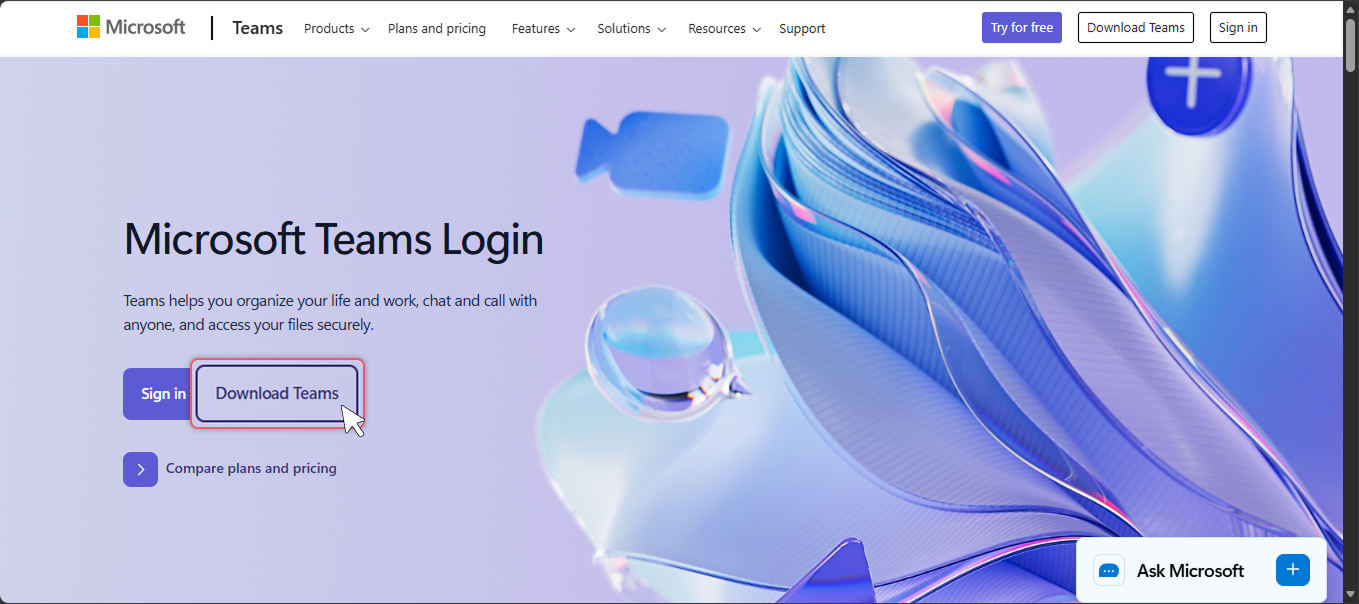
- Once downloaded, install the application on your device.
-
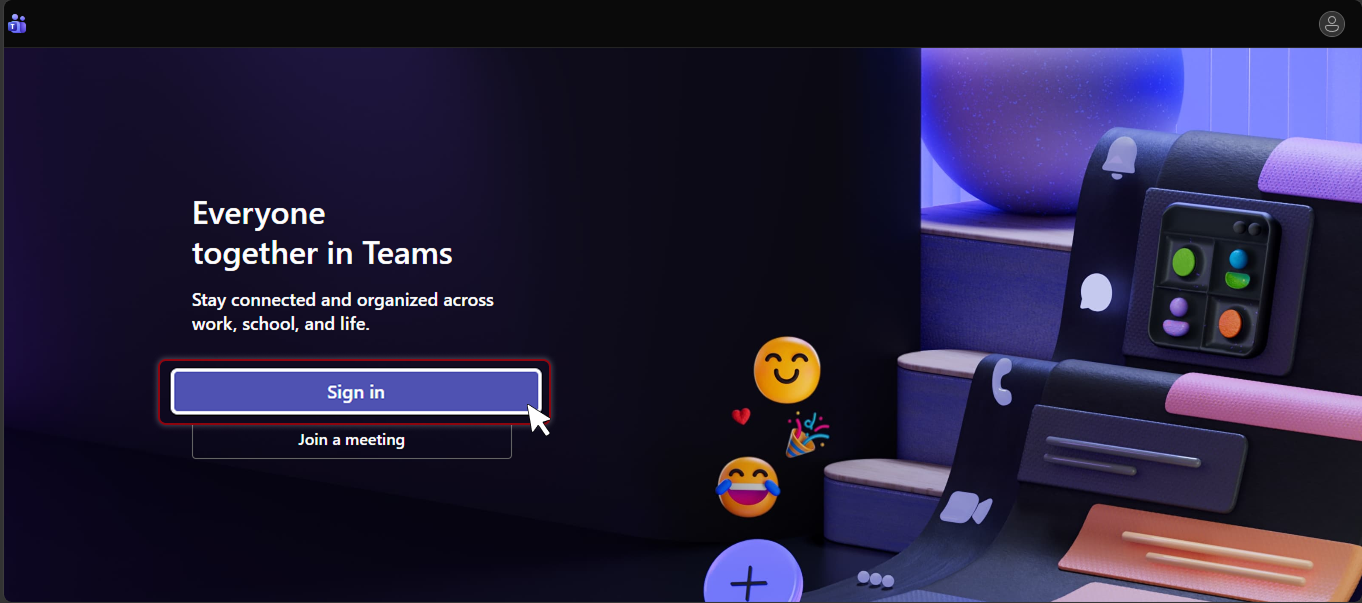
After installation, kindly register and log in using your email address.
Part 2: Account Endorsement and Support Process
- The Accounts Team will endorse a designated Point of Contact (POC) for each account to the Support Team.
- Please note that only the assigned POC is authorized to raise concerns through the Microsoft Teams support thread.
- If you encounter any issues while submitting a concern via Microsoft Teams, you may use the alternative contact below:
Email: [email protected]
Part 2.1: Accepting Your Microsoft Teams Invitation
You will receive an email invitation from our team to join Microsoft Teams as a Guest User.
Step 1: Sign In or Create an Account
- If you already have a Microsoft account, sign in using your email address.
- If you do not have an account, you will be prompted to create a free Microsoft account using your email address.
Step 2: Open the Invitation Email
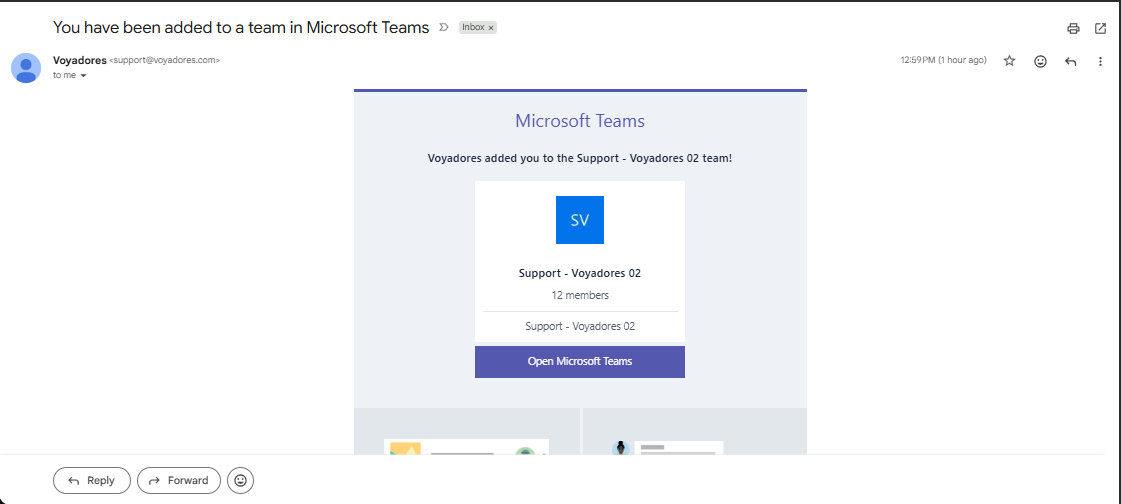
- Look for an email titled "You have been added to a team in Microsoft Teams".
-
Click the Open Microsoft Teams button in the email.
Step 3: Access the Assigned Channel
Once signed in:
- You will see the Team assigned to your organization.
- Click the Channel name to open it.
Part 3: Posting a Concern in the Correct Channel
Our team uses channels to organize concerns. You will be informed which channel to use (for example: General, Support, or Client Requests).
Step 1: Check the General Support Thread
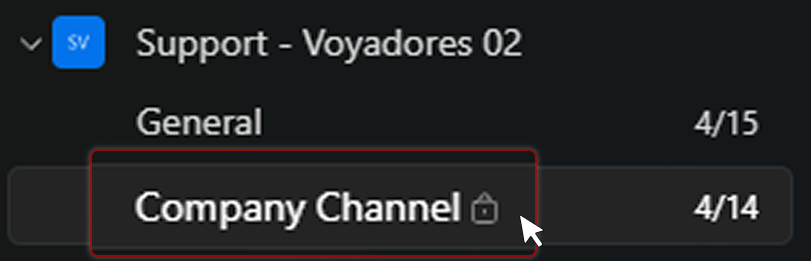
In the General section, look for “Support - Voyadores.”
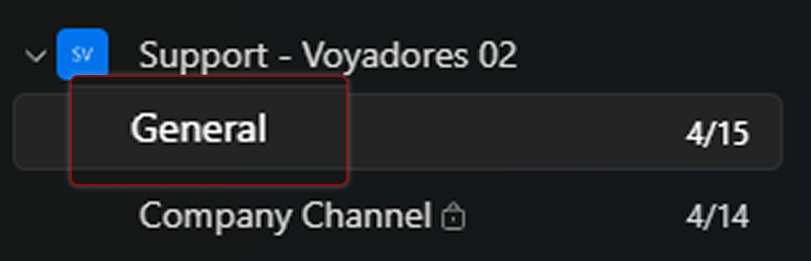
This is where the support team posts updates, announcements, and system maintenance notices.
Reminder
Do not post your concerns in the General thread because it is visible to everyone in that thread. For data privacy purposes, always use your designated company channel to raise your concern.
Step 2: Open the Assigned Channel
- Click the correct Channel name provided to you.
-
Review existing messages to check if your concern is already being discussed.
Part 3.1: Replying to an Existing Concern (If Related)
If your concern is related to an existing discussion:
- Locate the related message.
- Click Reply below that message.
- Type your message.
- Click Send.
Important
Always reply within the same thread to keep discussions organized.
Part 4: Creating a New Concern (If No Existing Thread Exists)
If your concern is new:
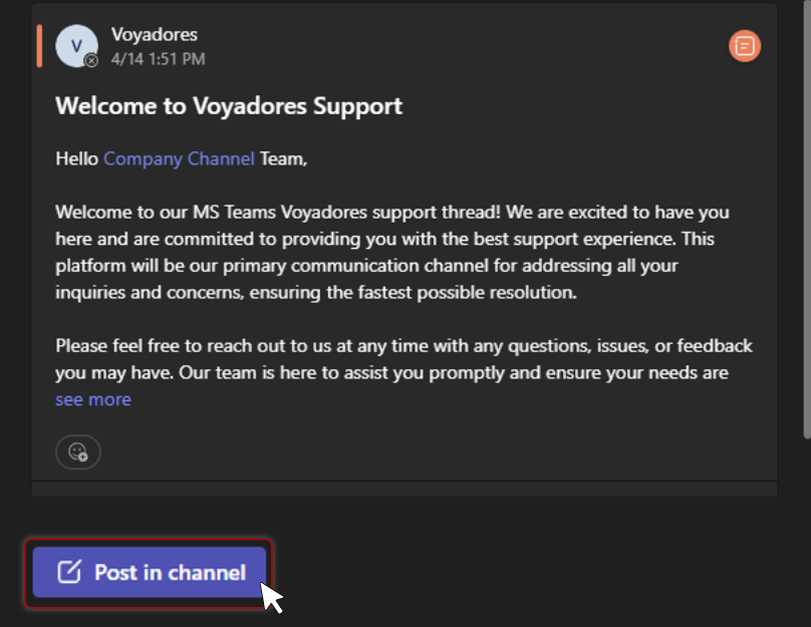
- Click Post in Channel
- Enter the details using the format below.
- Click Send
Recommended Concern Format
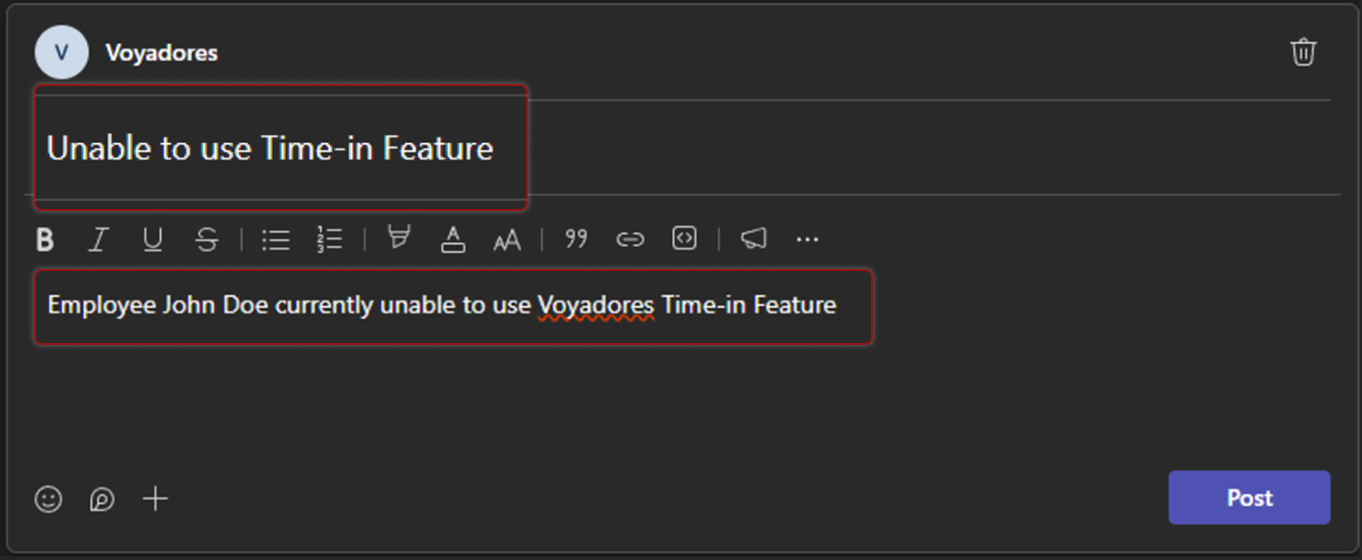
Please copy and complete the template below when submitting a concern:
Subject: Short description of the issue
Description: Provide a clear explanation of the issue.
Details: (Example: Employee details, Specific Page, or Data)
Screenshot/Attachment: Attach a screenshot if available.
Part 5: Tagging the Support Team
To notify our support team immediately:
- Type Support or Voyadores in your message.
-
Select the suggested group name when it appears.
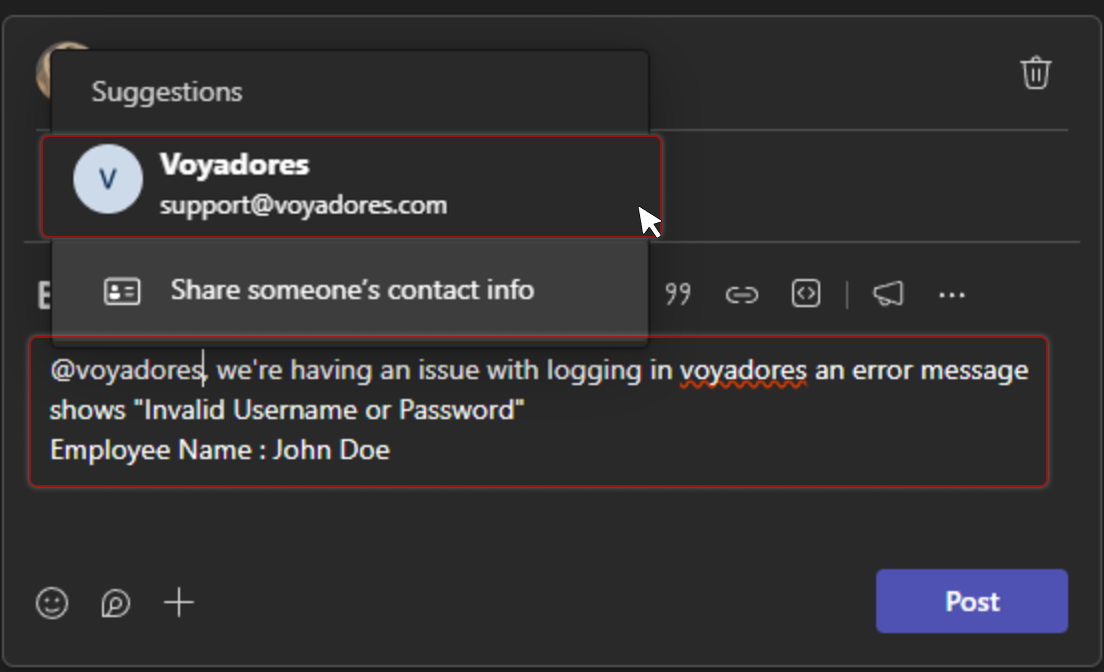
This ensures your concern is received promptly
Part 6: Attaching Screenshots or Files
Providing screenshots helps us understand the issue faster.
To attach files:
- Click the Attach icon (paperclip), or
- Drag and drop the file into the message box.
Recommended attachments:
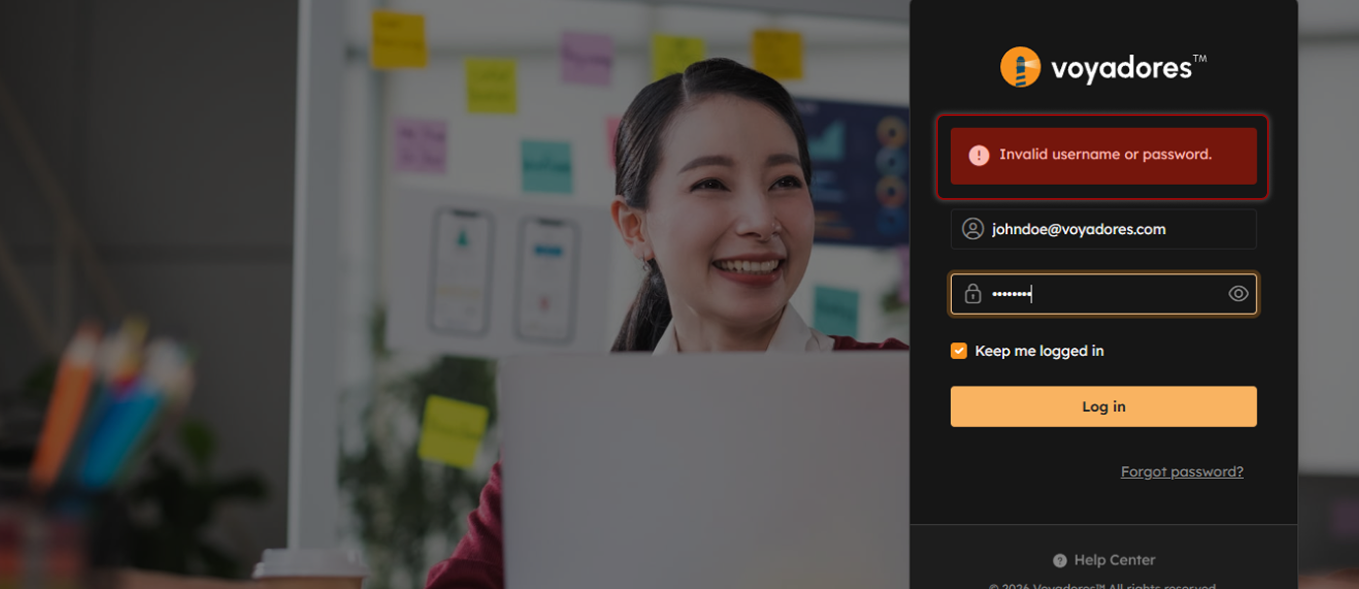
- Error screenshots
- System messages
- Relevant documents
Part 7: Monitoring Updates
After submitting your concern:
- Watch for replies from our support team.
- Respond within the same thread if additional details are requested.
- Avoid creating duplicate messages for the same issue.
Best Practices for Faster Support
To help us resolve your concern quickly:
- Submit concerns in the correct channel.
- Use clear subject titles.
- Provide complete details.
- Include screenshots when possible.
- Reply in the same thread for updates.
Need help?
If you experience difficulty accessing Microsoft Teams or submitting a concern, please contact our support team using the contact details provided to you during onboarding.
We look forward to supporting you efficiently through Microsoft Teams.