Push Notifications
Voyadores can send real-time notifications directly to a user's browser or device, even when Voyadores is not currently open. Push notifications help users stay updated without having to repeatedly open Voyadores, refresh the page, or check the notification bell.
What Are Push Notifications?
Push notifications are alerts sent by Voyadores when an important update occurs, such as:
- Task assignments
- Status changes
- Other important updates
Notifications can appear even when the Voyadores tab is minimized or closed. This is made possible by the browser's background notification service.
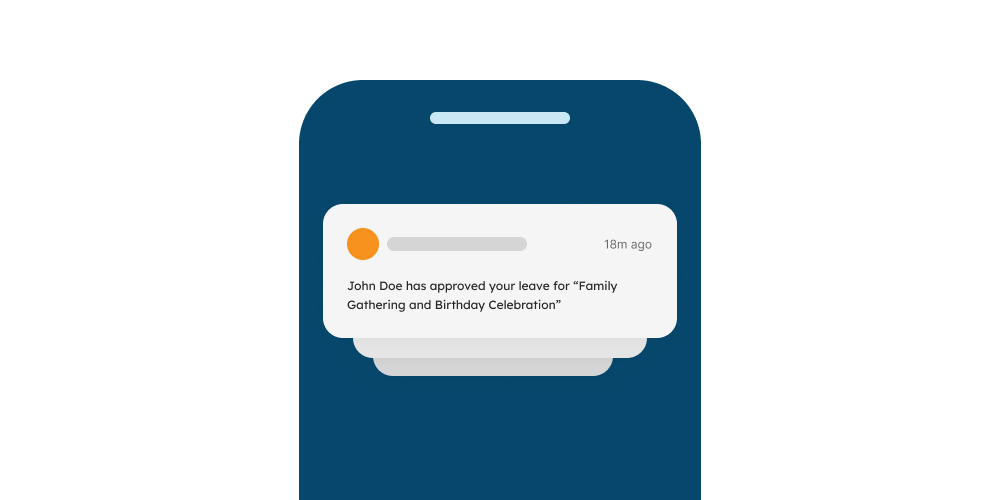
Benefits of Push Notifications
- Receive updates immediately – Important updates can reach the user as soon as they happen.
- Spend less time checking Voyadores – Users do not need to keep refreshing the page to look for new notifications.
- Receive notifications even when Voyadores is closed – On supported devices, notifications can still appear even when the browser or Voyadores tab is not open.
- See unread notifications at a glance – The Voyadores icon can display an unread notification count.
- Control notification access – Users can disable notifications at any time through their browser or device settings.
How to Enable Push Notifications
Voyadores asks for the user's permission before enabling push notifications. Notifications are not enabled automatically.
Step 1: Wait for the Notification Prompt
- When push notifications are available for the user, Voyadores displays an Enable Notifications dialog.
-
The dialog explains the purpose of push notifications and asks the user to set their notification permission.
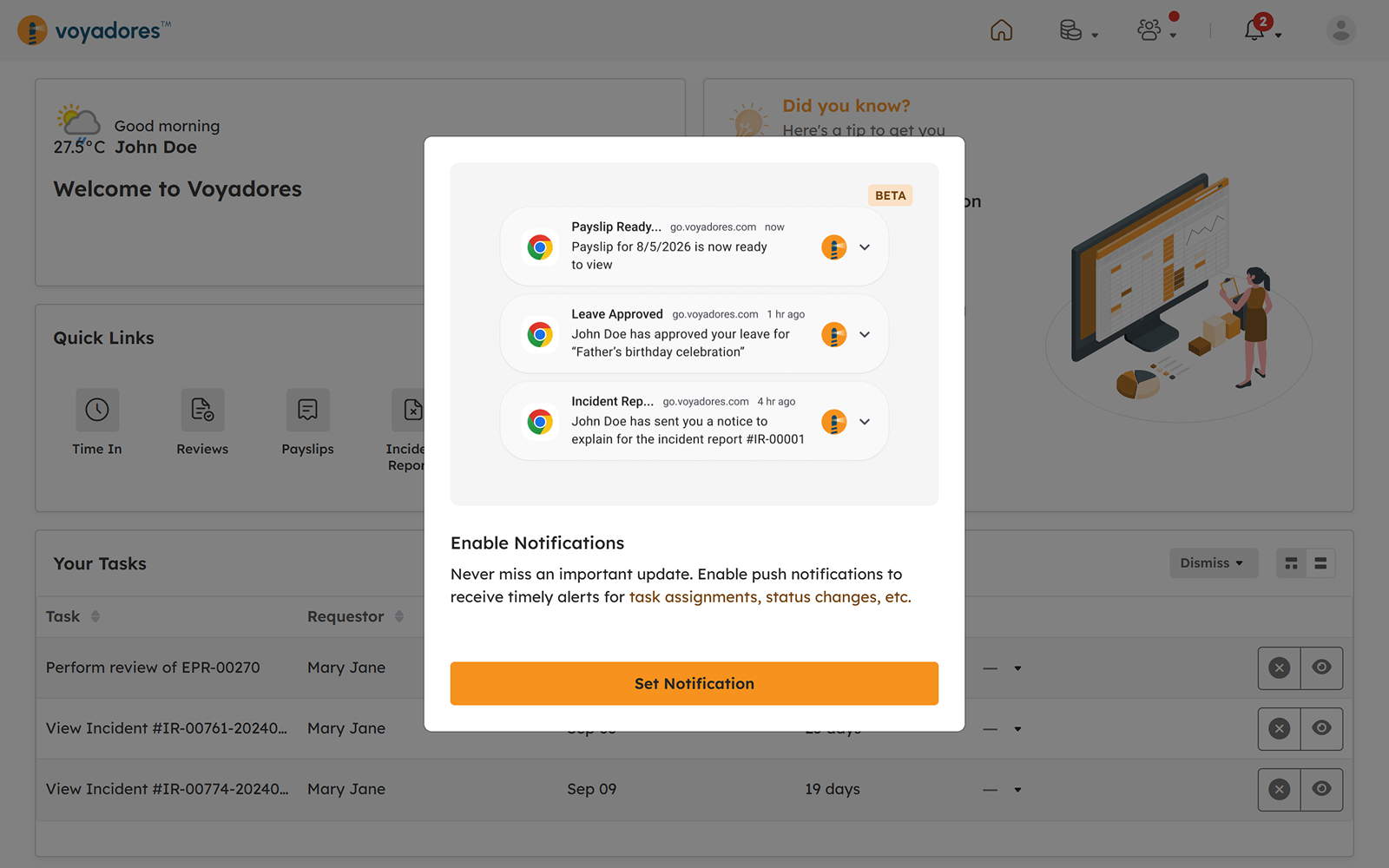
Step 2: Click "Set Notification"
- Click Set Notification to continue.
- The browser's native notification permission prompt is displayed next.
Step 3: Allow Notifications in the Browser
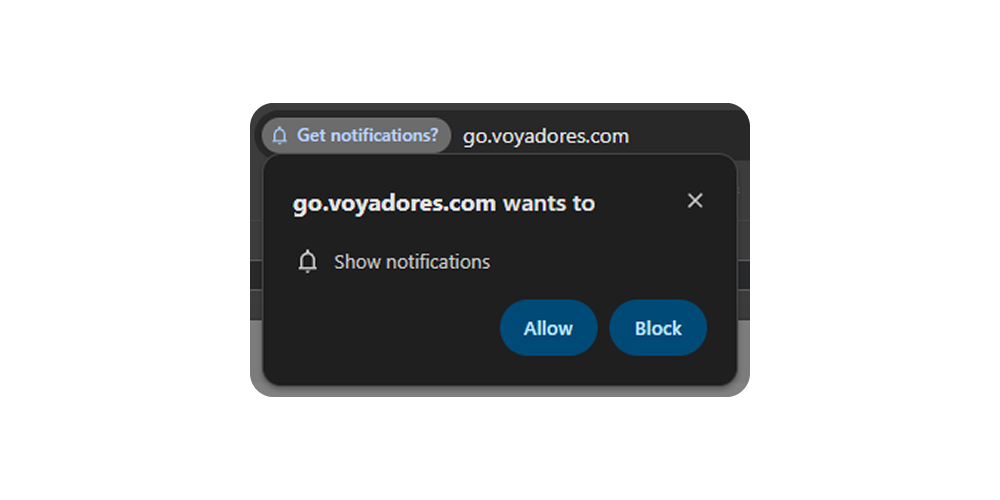
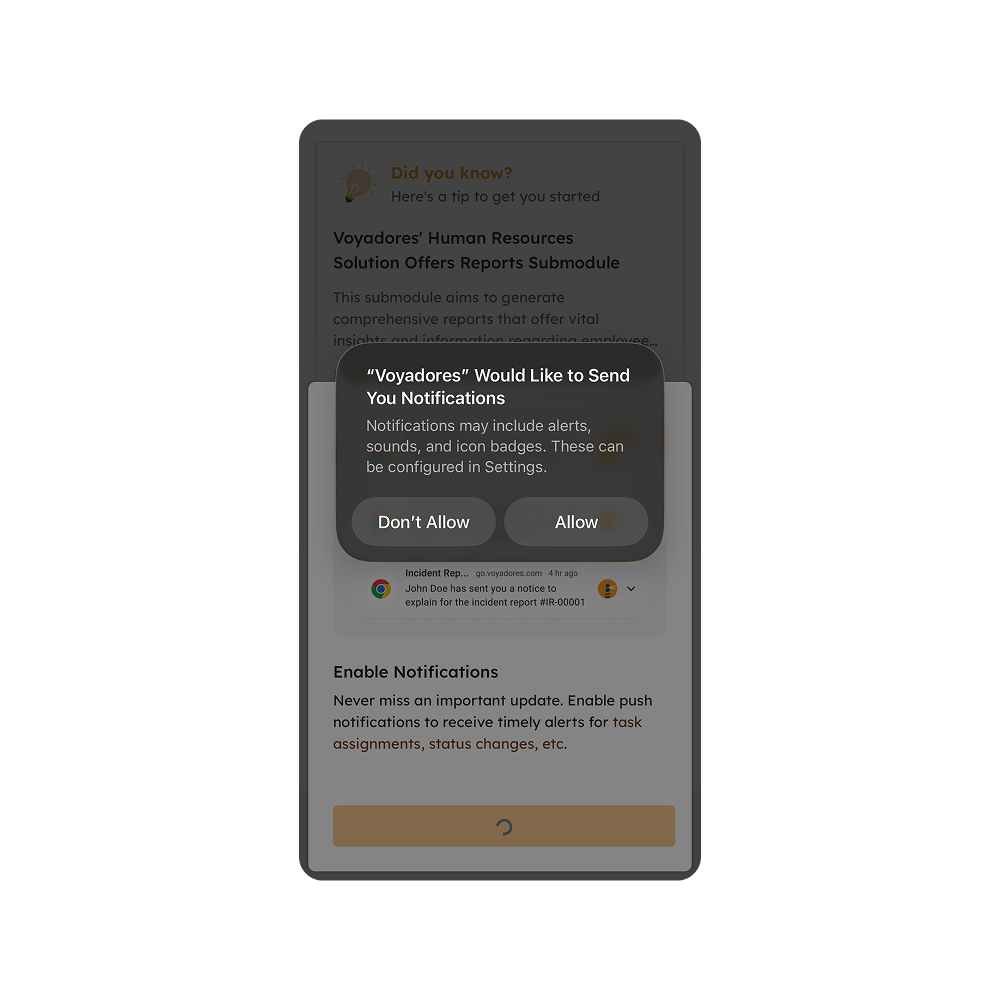
- After Set Notification is selected, the browser displays its own notification permission prompt.
- Select Allow to let Voyadores send notifications to the device.
- If you select Block, Voyadores will not be able to send notifications. Notifications can still be enabled later through the browser or device settings.
-
Desktop (Chrome): The browser asks whether voyadores.com may show notifications.
-
iOS (Safari): The prompt looks different on iOS, but the steps are the same.
Step 4: Notification Setup Confirmation
-
After permission is granted, Voyadores registers the device and displays this message:
Your device has been successfully registered for notifications
- The setup is now complete. Voyadores will continue to refresh the device registration during future visits.
Supported Devices and Browsers
Push notifications are supported on the latest supported browser versions used by Voyadores.
| Browser | Supported Version | Platform | Push Notification Support |
|---|---|---|---|
| Google Chrome | Chrome 126+ | Windows, macOS, Linux, Android, ChromeOS | Full support |
| Microsoft Edge | Edge 126+ | Windows, macOS, Linux, Android | Full support |
| Mozilla Firefox | Firefox 128+ | Windows, macOS, Linux | Full support |
| Apple Safari | Safari 16+ | macOS | Full support |
| Apple Safari | Safari 16+ | iOS, iPadOS, visionOS | Requires Voyadores PWA |
| Microsoft Edge | Edge 126+ | iOS | Requires Voyadores PWA |
Note for iOS and iPadOS
Push notifications do not work when Voyadores is opened only in a regular Safari browser tab. Voyadores must first be installed as a PWA (Add to Home Screen).
Users Already Using the Voyadores PWA
Users who installed the Voyadores PWA before push notifications were introduced may need to reinstall it.
- Delete the existing Voyadores app from the device.
- Open Voyadores again using the mobile browser.
- Install Voyadores again using Add to Home Screen on iOS, or the available installation option on Android/Chrome. Read more in PWA Installation.
- Follow the push notification setup steps in How to Enable Push Notifications.
Notifications When Focus or Do Not Disturb Is On
A device's Focus, Do Not Disturb, or similar mode does not prevent Voyadores from sending notifications. Instead, the device may keep the notifications silent or place them in the notification center.
iOS
- When Focus is enabled, Voyadores notifications may be delivered silently to the Notification Center instead of appearing immediately on the screen.
- Check the Notification Center, or add Voyadores to the Focus mode's allowed notifications if you want notifications to appear immediately.
Android
- When Do Not Disturb is enabled, Voyadores notifications may arrive silently in the notification shade.
- Add Voyadores to the allowed apps under the device's Do Not Disturb settings if immediate notifications are required.
Windows
- When Focus Assist is enabled, notifications may be placed in the Notification Center instead of appearing as pop-up notifications.
- Add Voyadores or your browser to the priority list if notifications need to appear immediately.
Note
Even when notifications are silenced by Focus or Do Not Disturb, the unread notification badge can still update in the background.
How to Disable Push Notifications
Users can disable push notifications at any time.
If Notifications Have Not Been Enabled
- When the browser's notification permission prompt is displayed, select Block instead of Allow.
If Notifications Are Already Enabled
Notification access is controlled through the browser or device settings.
Desktop – Chrome, Edge, or Firefox
- Open Voyadores.
- Click the padlock/info/settings icon beside the Voyadores URL.
- Find Notifications in the permissions list.
- Change the notification permission to Block.
iOS – Installed Voyadores PWA
- Open Settings.
- Select Notifications.
- Find the Voyadores app.
- Turn Allow Notifications off.
Android – Chrome/PWA
- Long-press the Voyadores icon, or open Settings > Apps > Voyadores.
- Select Notifications.
- Turn notifications off.
Re-enabling Notifications
- To enable notifications again, turn the notification permission back on through the same browser or device settings.
- After enabling the permission, revisit Voyadores so the device can register for notifications again.
Reminder
- Enable notifications on every browser or device where you want to receive alerts.
- On iOS and iPadOS, install Voyadores as a PWA before setting up notifications.
- If notifications stop appearing, check your browser or device notification permission first.