Performance
Who can use this feature
Anyone with an Administrator, HR Manager, or Employee role can access the Incident Reports page.
Access to incident-related actions may vary depending on the user's assigned role and permissions.
Introduction to Performance
The Performance submodule provides a centralized location for managing employee performance records, evaluations, and incident documentation. It supports performance monitoring, structured feedback, progress tracking, and effective performance management.
Definition of Terms
Defined in this section are the available pages under the Performance submodule as follows:
- Incident Report. A record used to document an event, concern, policy violation, performance issue, or other employee-related matter requiring HR attention.
- Performance Review. A formal evaluation of an employee's work performance over a defined review period.
Roles and Permissions
The table below shows the defined roles and permissions when accessing pages and features under Performance Submodule.
| Function | Administrator | HR Manager | Employee | |
|---|---|---|---|---|
| Incident Report | ||||
| View Incident Reports | ||||
| Create Incident Reports | ||||
| Manage/Resolve Incident Reports | ||||
| Respond to Own Incident | ||||
| Reviews | ||||
| Access Performance Reviews | ||||
| View Performance Reviews | ||||
| Create Performance Reviews | ||||
| Manage/Update Reviews | ||||
Roles and Permissions
The availability of employee actions depends on the organization's configured roles, permissions, and performance review workflow. Certain features may be restricted or unavailable based on access settings.
For assistance, contact [email protected]
Incident Reports
Introduction to Incident Reports
The Incident Reports page within the Human Resources application provides a centralized way to document, monitor, and manage employee-related incidents. It helps HR teams maintain complete and organized records of workplace incidents, including the people involved, witnesses, supporting documents, actions taken, and the current status of each case.
By keeping incident information in one location, organizations can improve consistency in documentation, support fair and informed decision-making, and maintain a reliable historical record for performance management and employee relations.
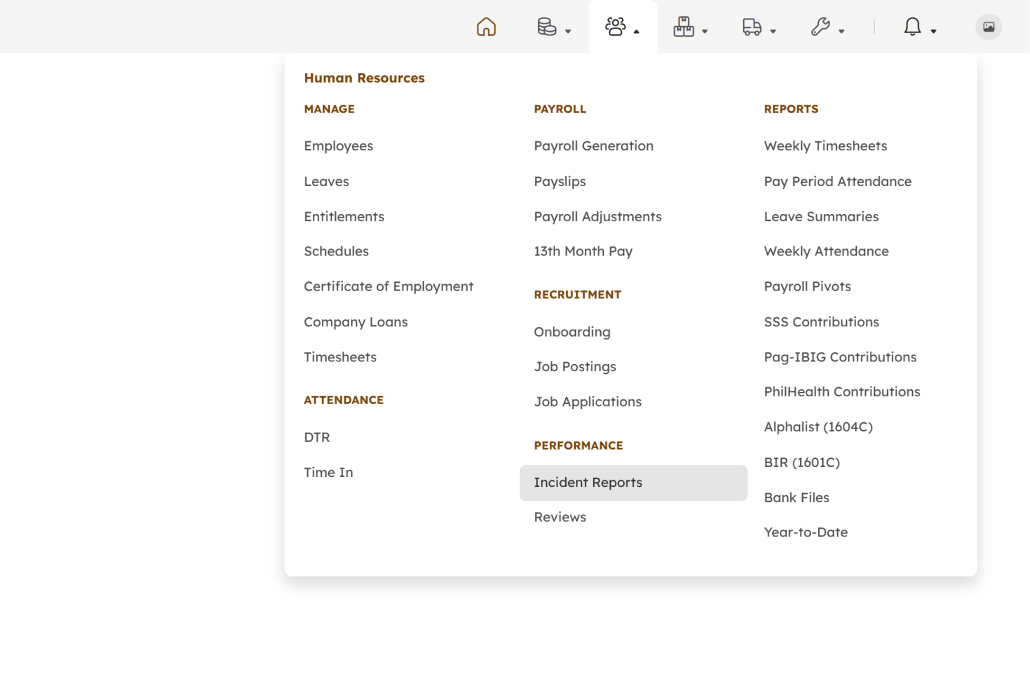
To access Incident Reports, navigate to the Human Resources Module and select the Incident Reports option under the Performance section. Once redirected, users can view existing incident records and use the available features based on their role and permissions.
Incident Report Features
The image below summarizes the main features available in the Filed tab of the Incident Reports page.
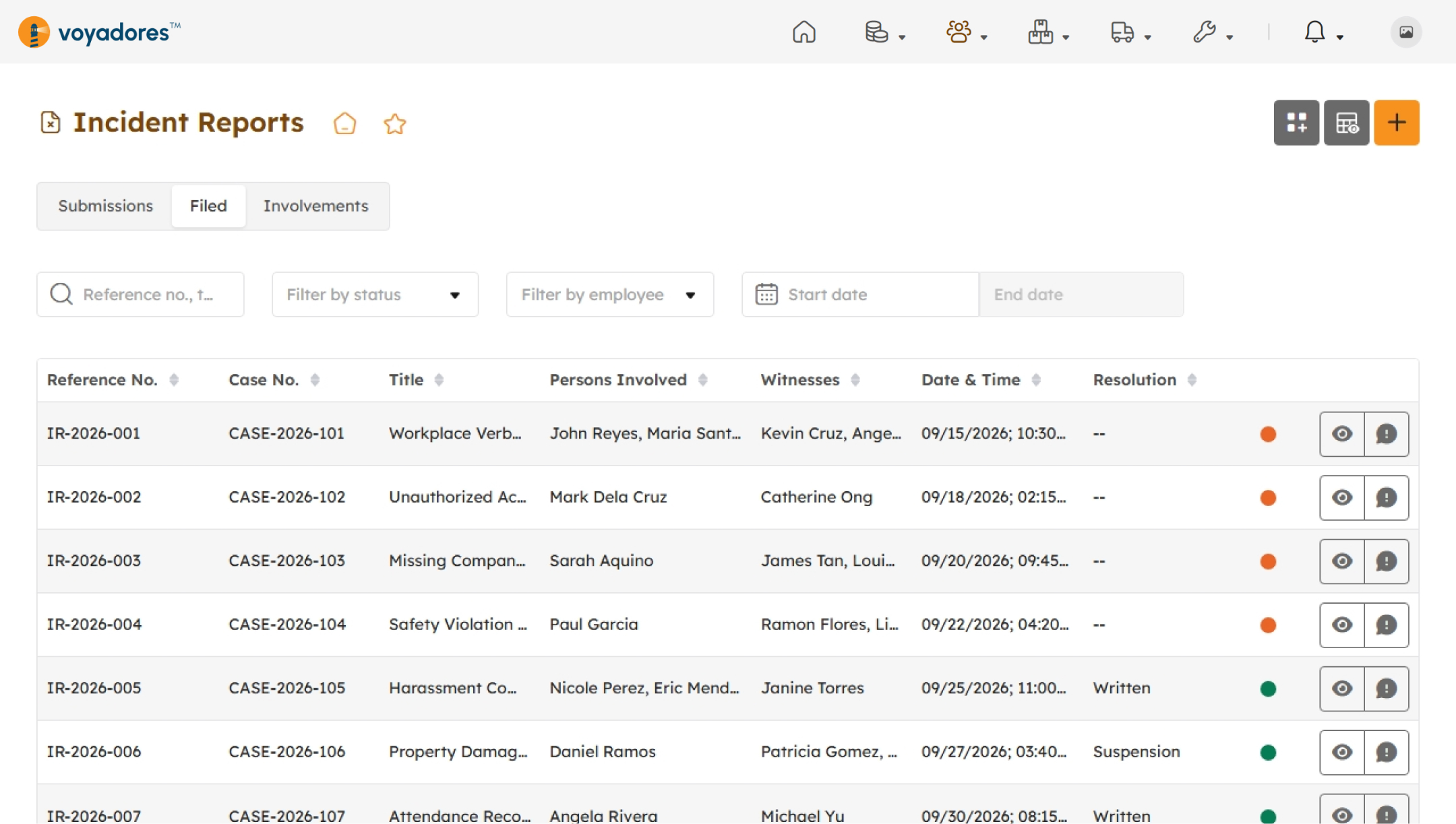
Incident Reports Page Header Actions
- Set as Default Page
- Add to Quick Links
- Create Incident Report
- Preview Incident Report
- Manage Incident Category
Incident Reports Summary Table
- Reference Number
- Case Number
- Title
- Persons Involved
- Witnesses
- Date and Time
- Resolution
- Status
-
Actions in Filed and Involvements tab
- View Incident Report
- Open Incident Report Chat
-
Actions in Submissions tab
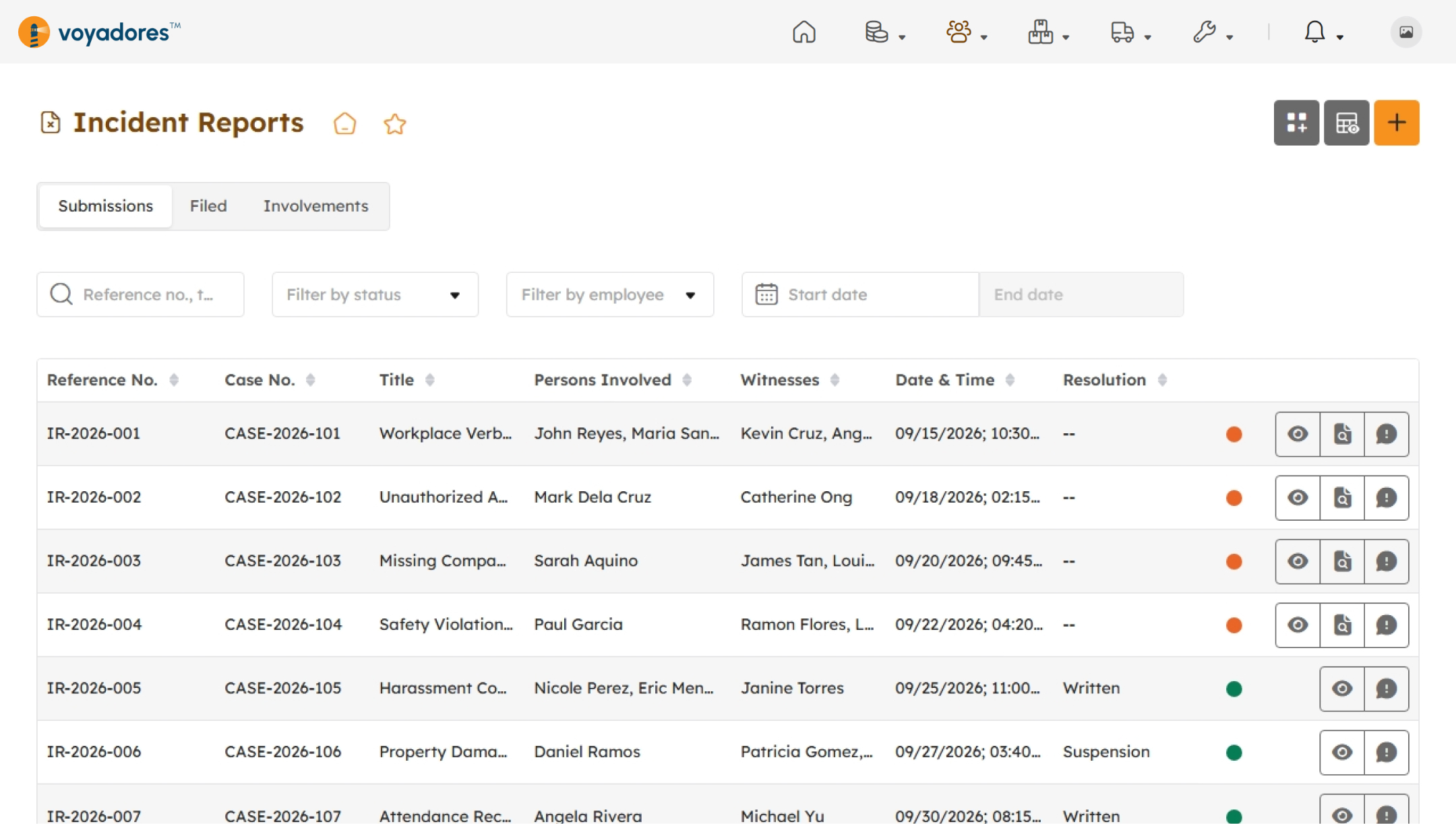
- View Incident Report
- Investigate Incident Report
- Open Incident Report Chat
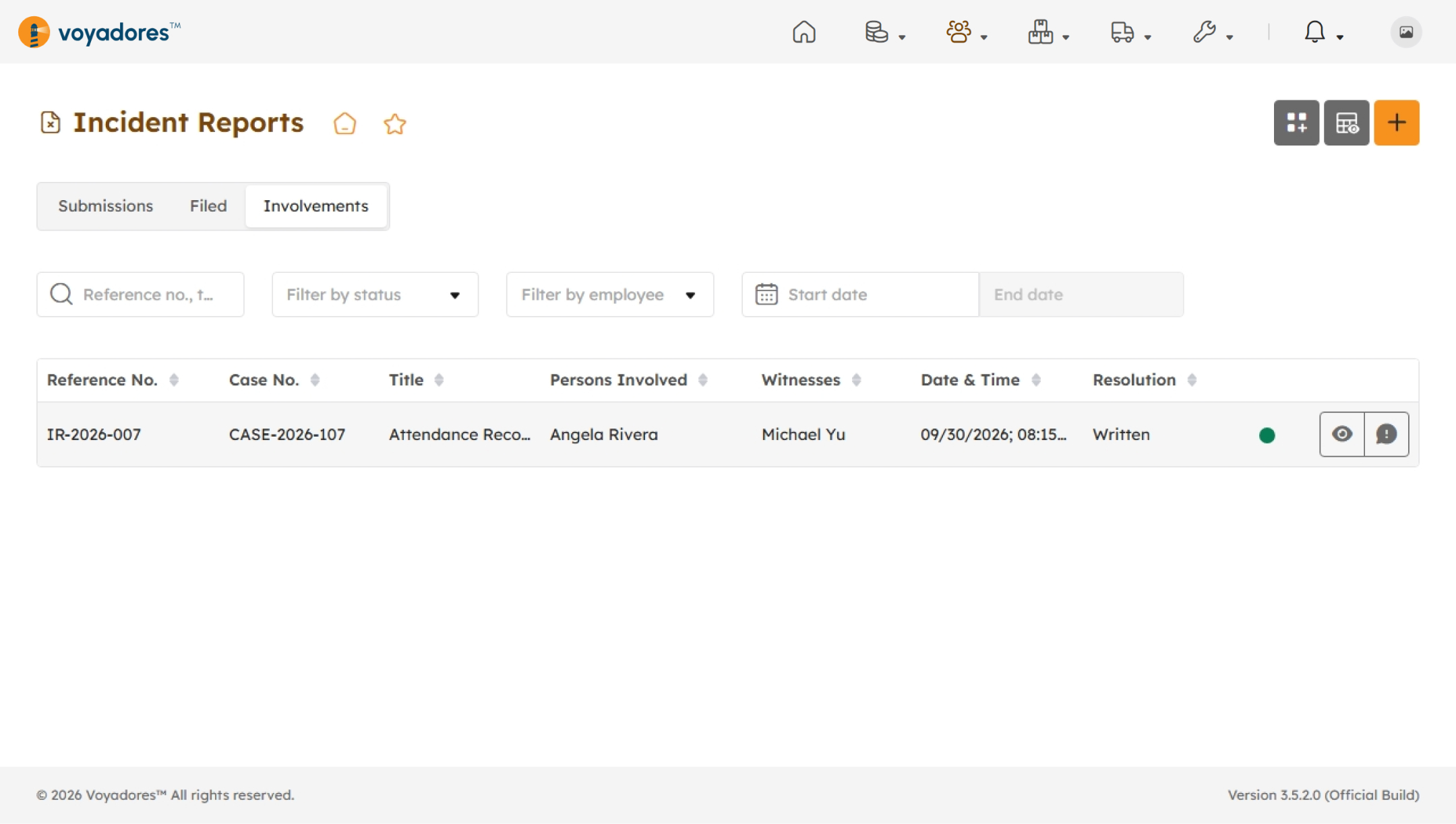
To view incident reports where you are identified as a person involved, witness, respondent, complainant, or any other related party, simply open the Involvements tab:
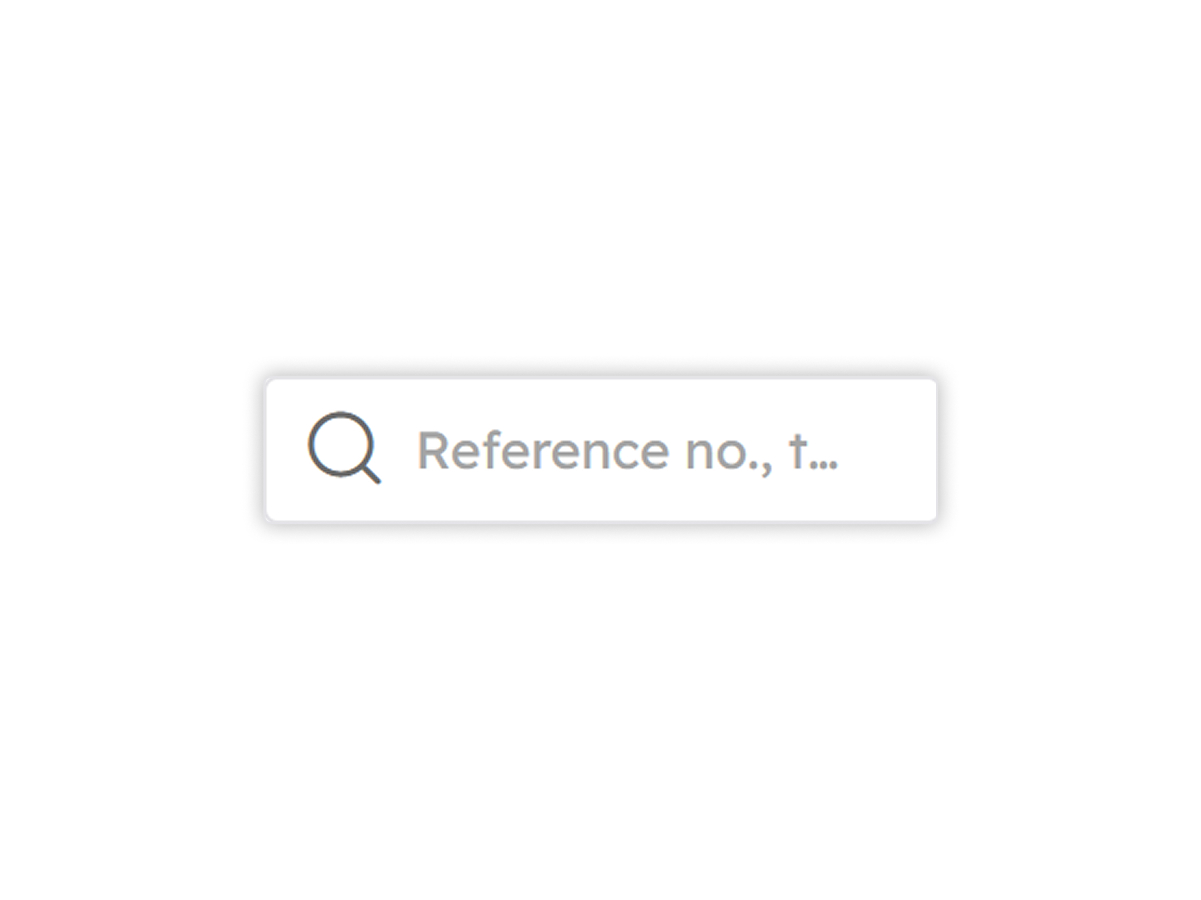
Search by Reference Number or Title
Locate specific incident reports by entering a reference number, title, or other searchable information in the search field.
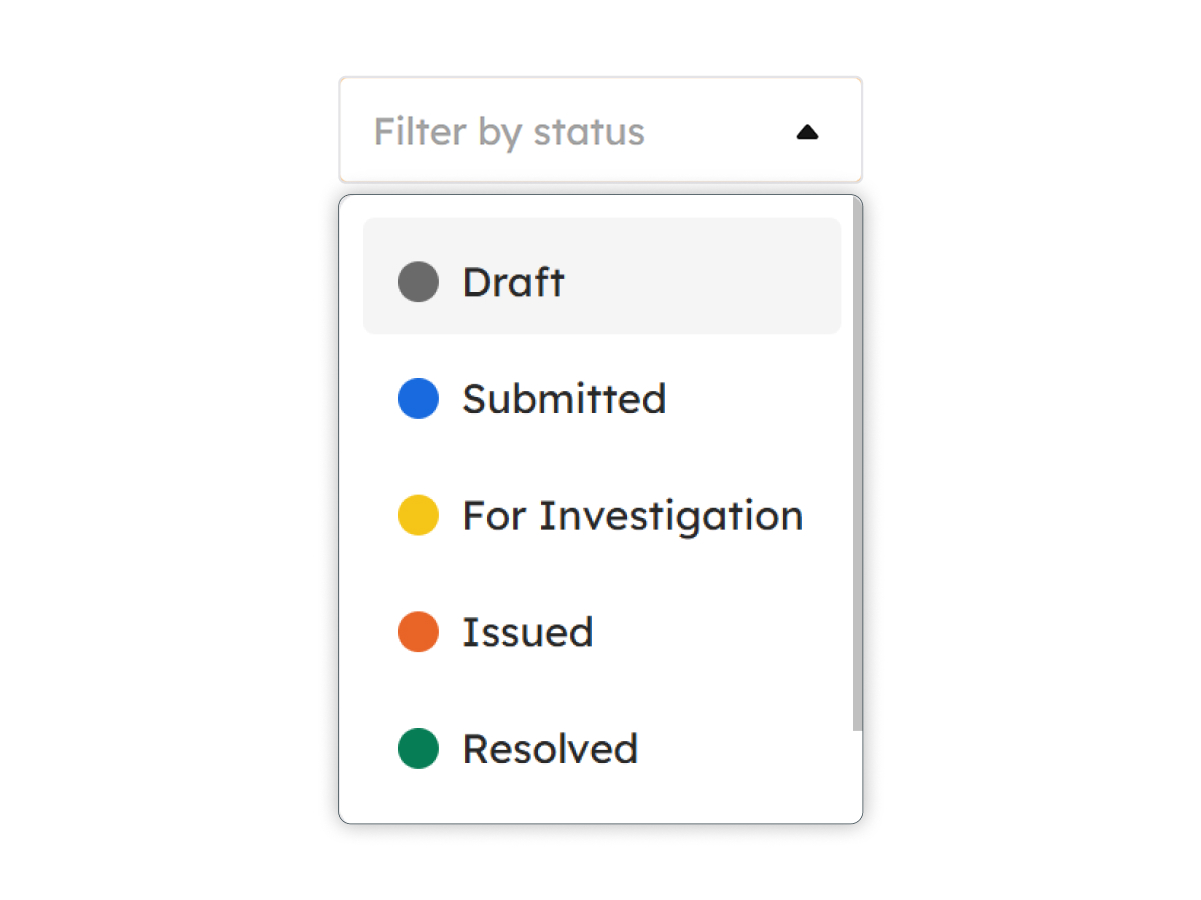
Filter by Status
Display incident reports that match a selected status to quickly narrow down results.
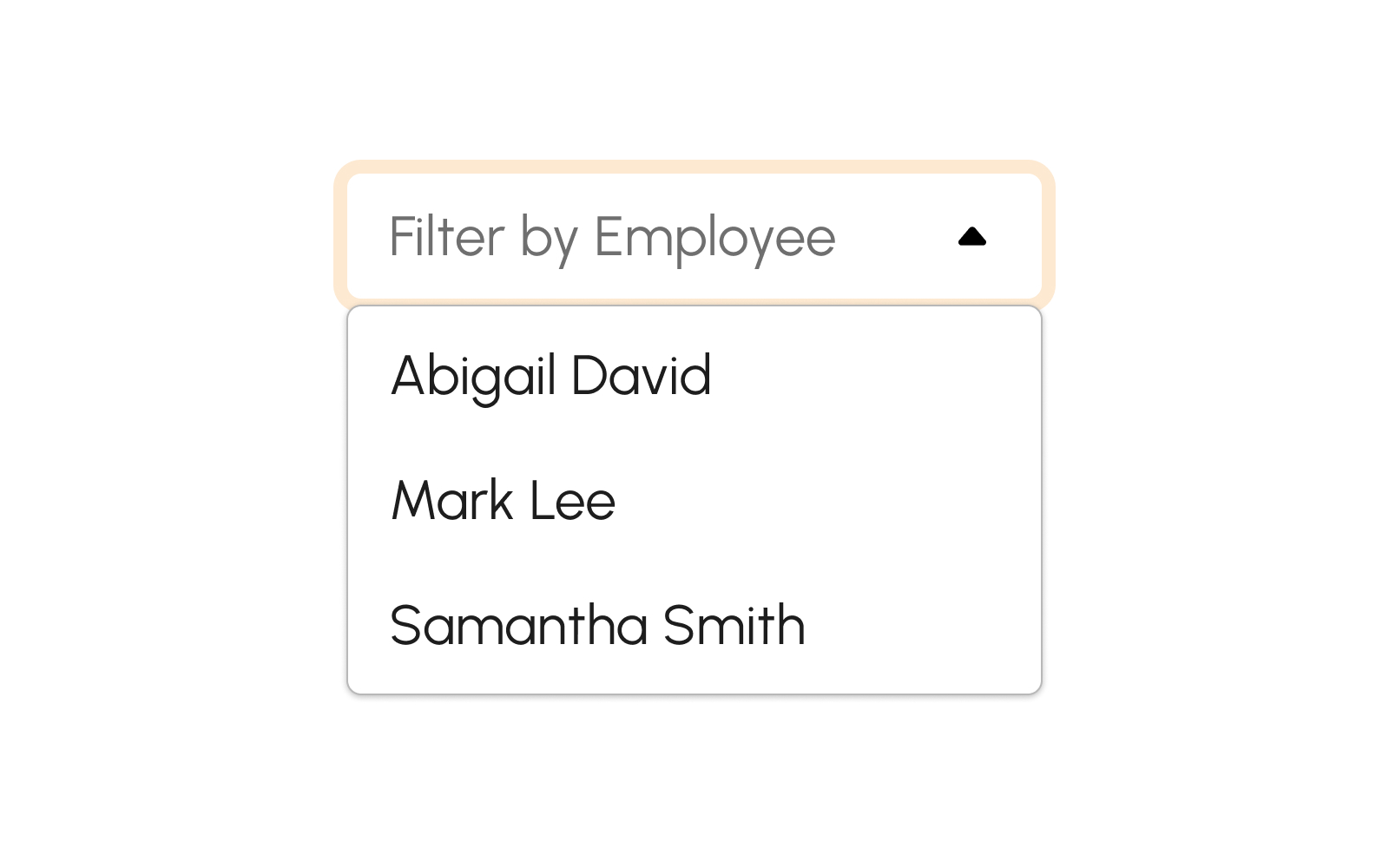
Filter by Employee
Display incident reports associated with a selected employee.
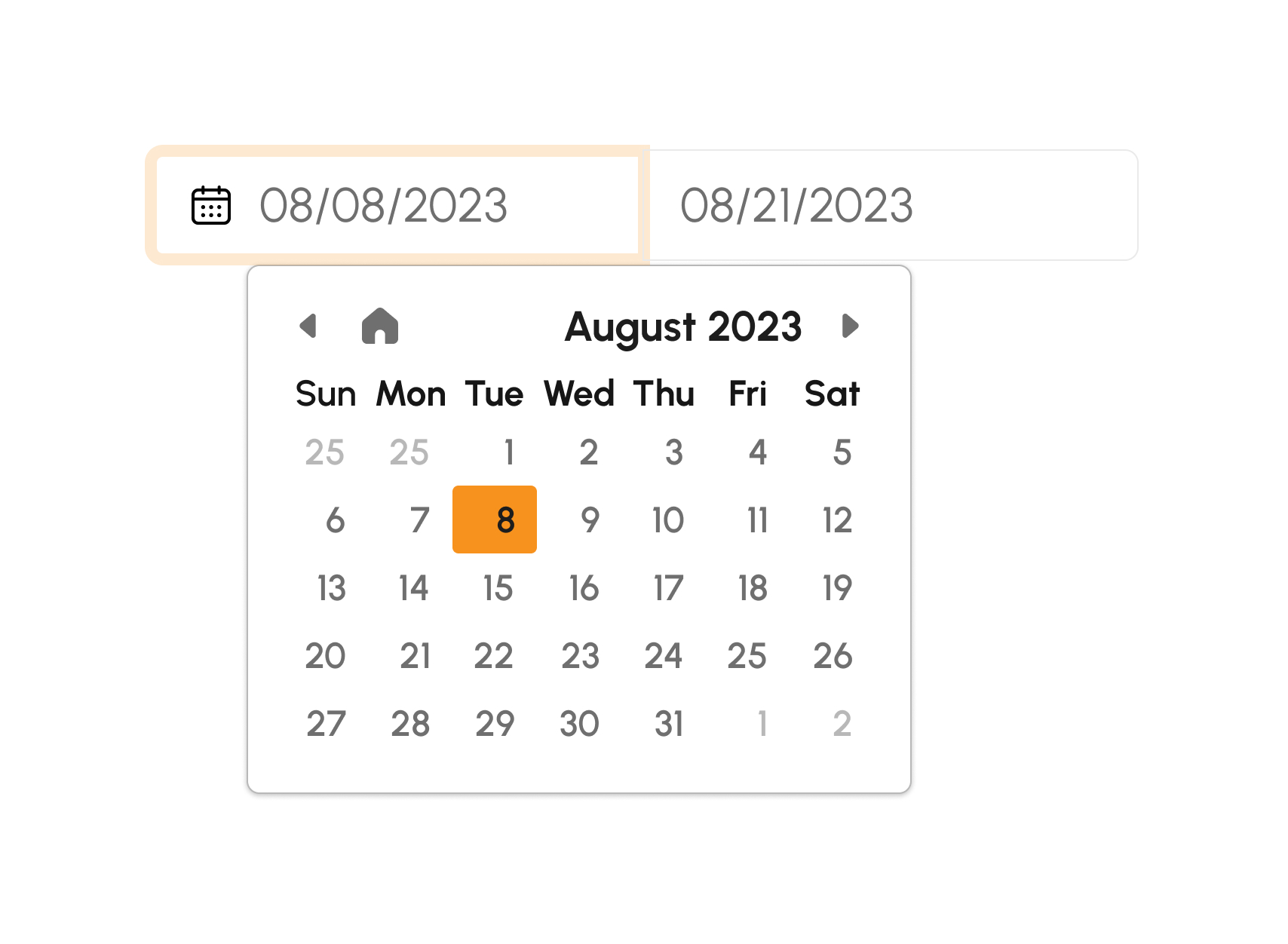
Filter by Date
Display incident reports within a specified date or date range.
View Incident Reports
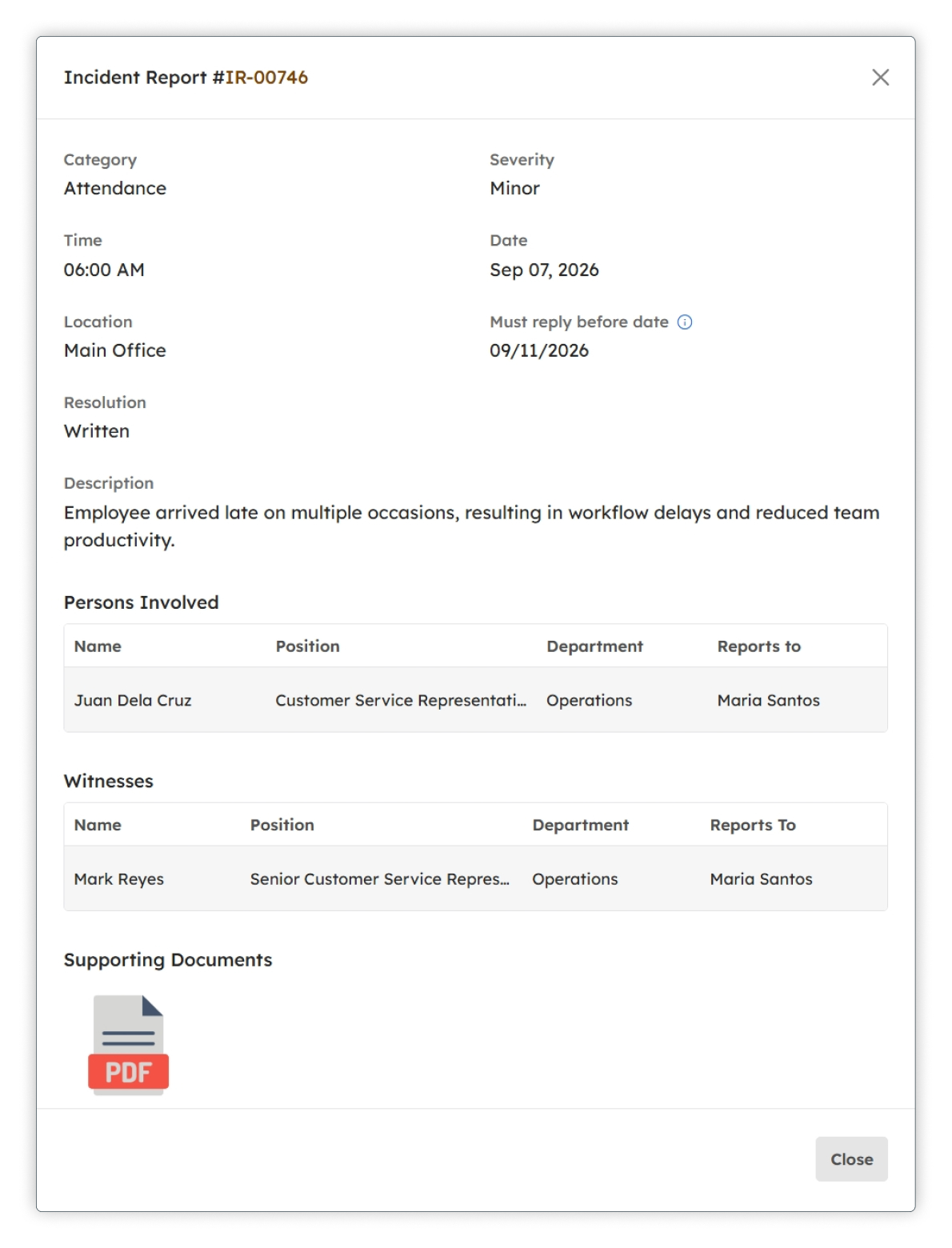
To review an incident, select the available View or Details action for the record. The incident details provide the information needed to understand the reported event, including the persons involved, witnesses, description of the incident, supporting files, and actions or resolutions recorded for the case.
Create Incident Reports
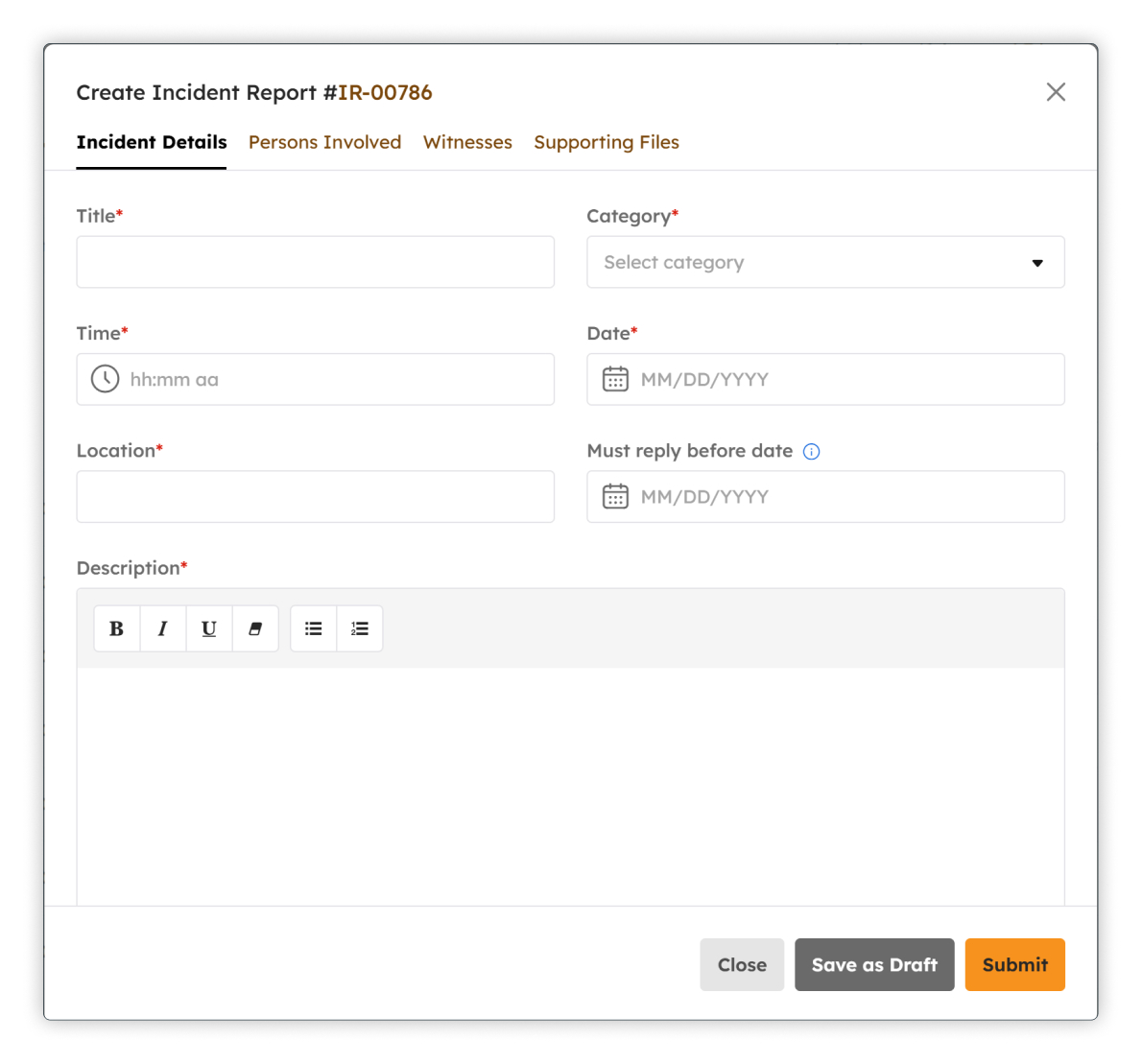
Authorized users can create an incident report to document a new case. Provide complete and accurate information about the incident, including the incident date, persons involved, witnesses, category, severity, description, and any supporting files required by the organization's process.
- Click the button.
-
Enter the required incident information:
- Title
- Category
- Time
- Date
- Location
- Must reply before date
- Description
-
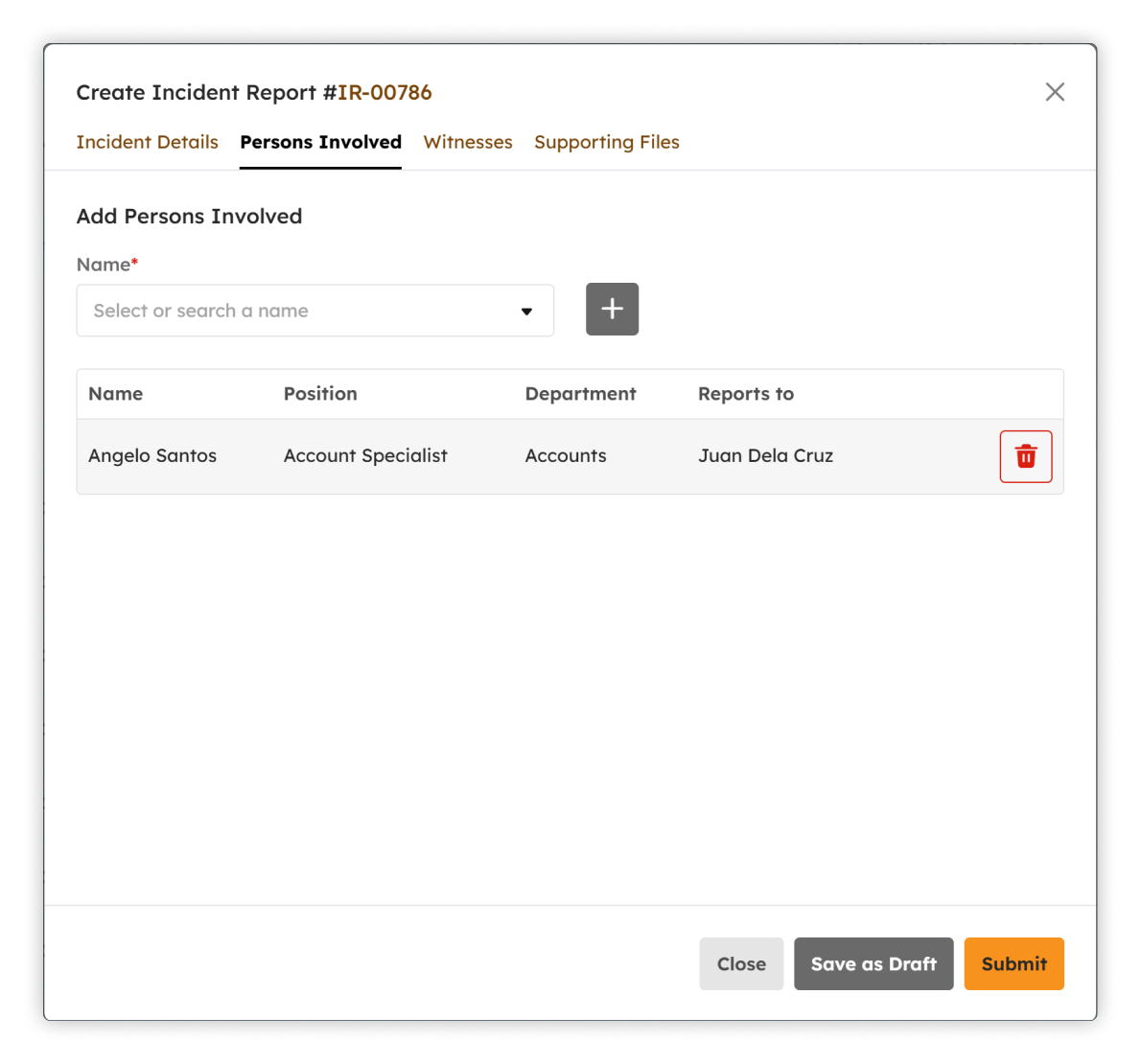
Identify the persons involved and click to add the person involved to the table.
-
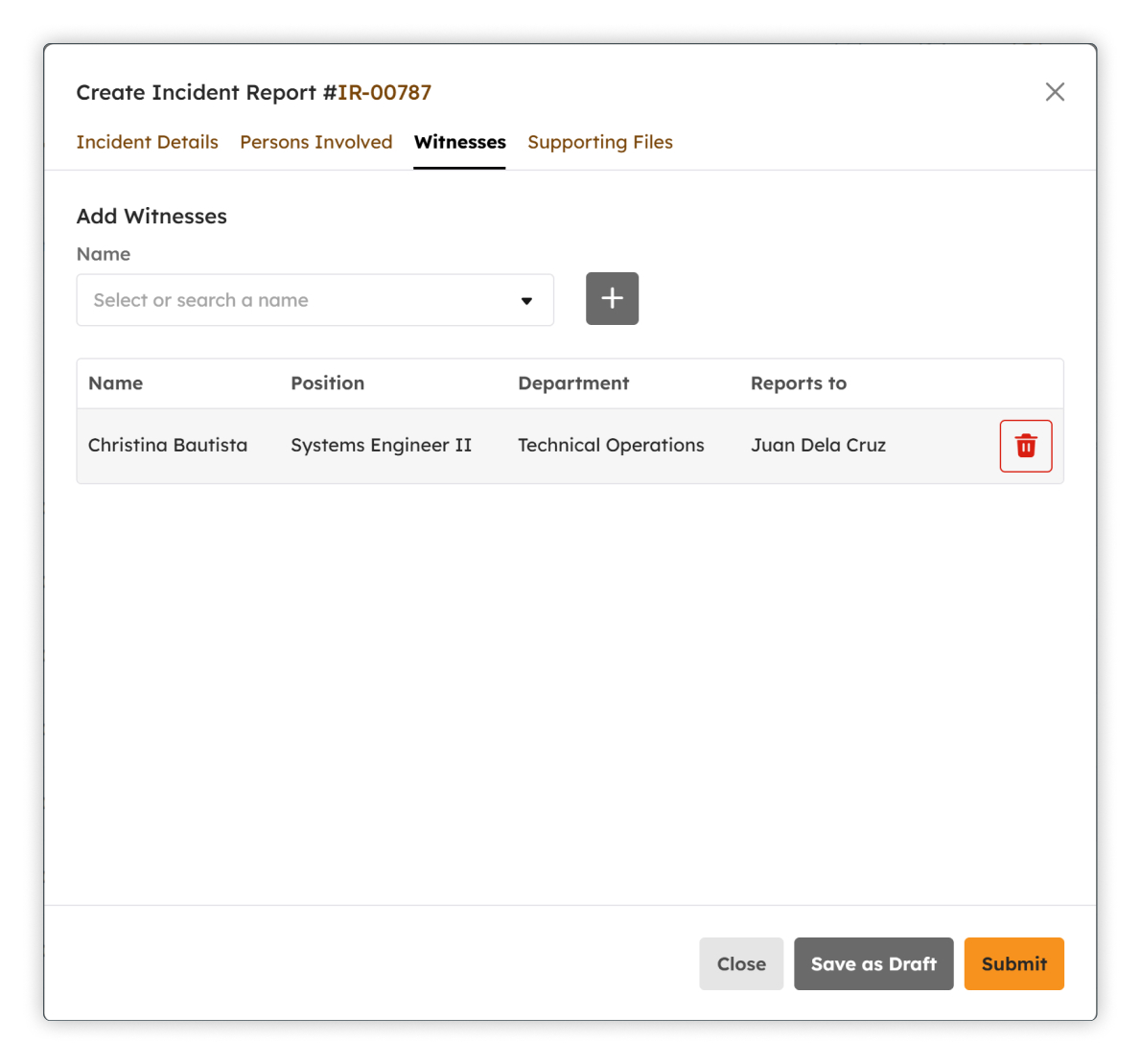
Identify the witnesses, when applicable. Then, click to add the witness to the table.
-
Attach supporting files when necessary
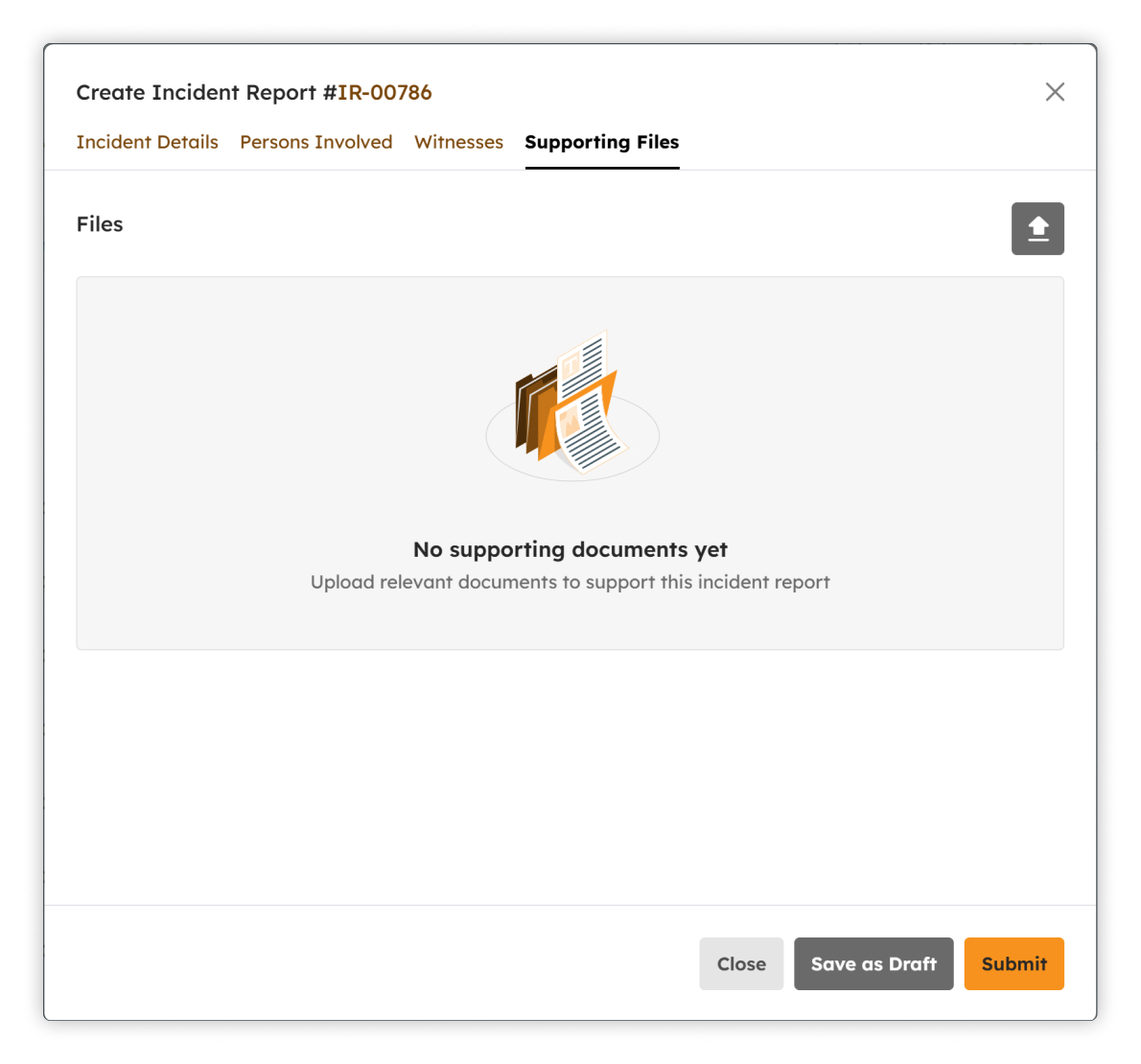
- Review the information and submit the incident report by clicking Submit or Save as Draft to save the IR and continue editing later.
Incident Categories
The Incident Categories modal allows administrators to view, search, filter, create, edit, and manage incident report categories.
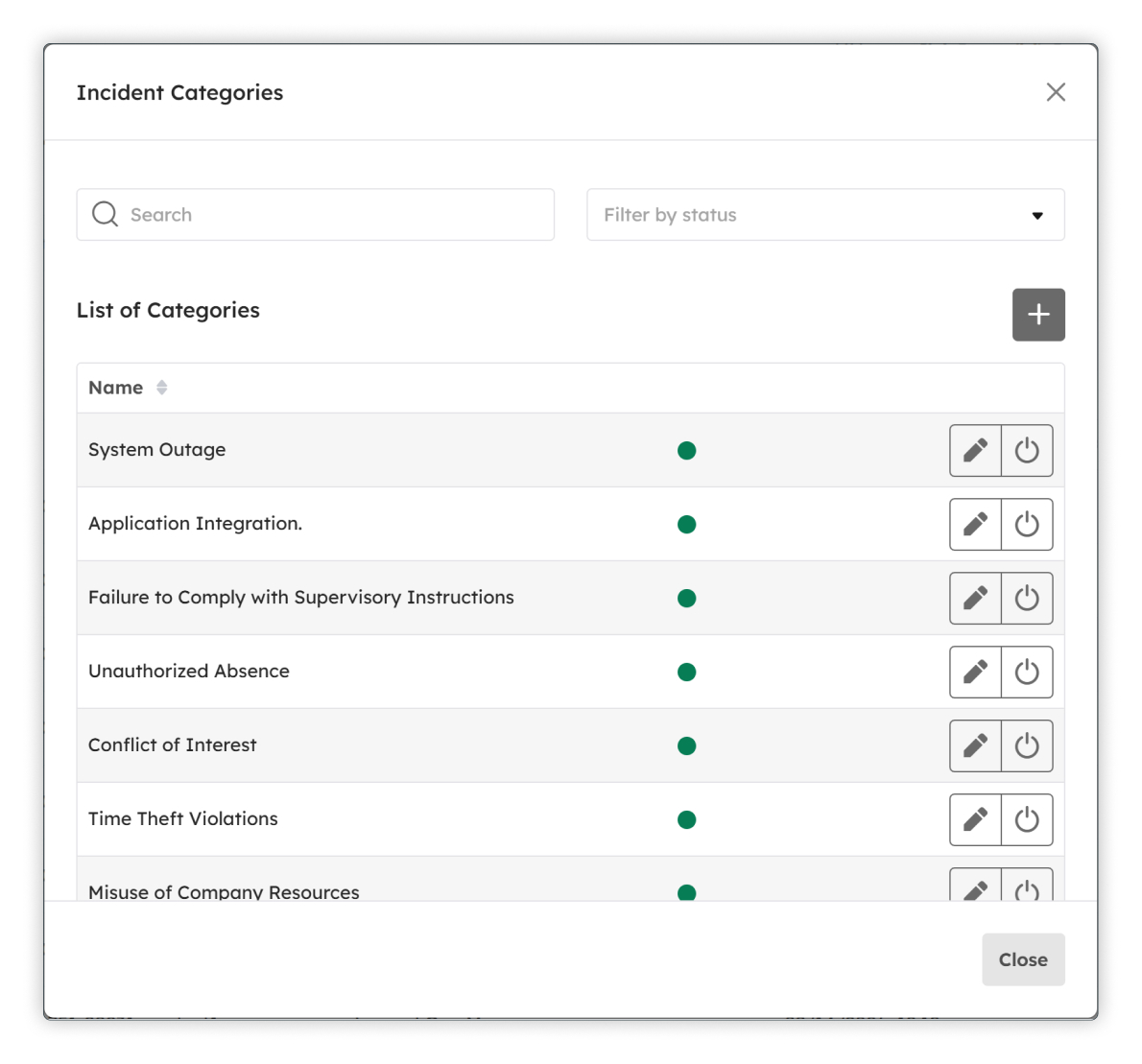
The List of Categories table displays:
- Name
- Status
-
Actions
-
Edit Incident Category
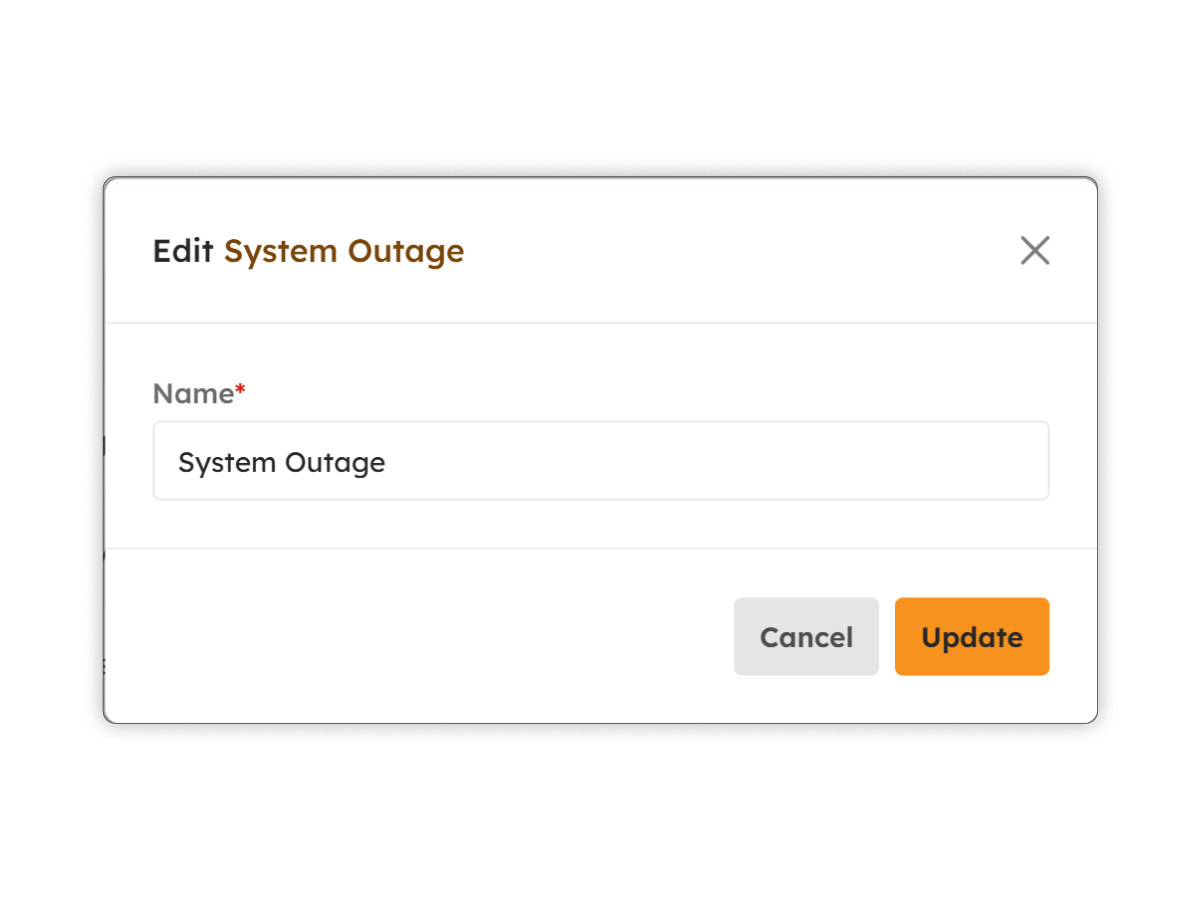
-
Activate/Deactivate Incident Category
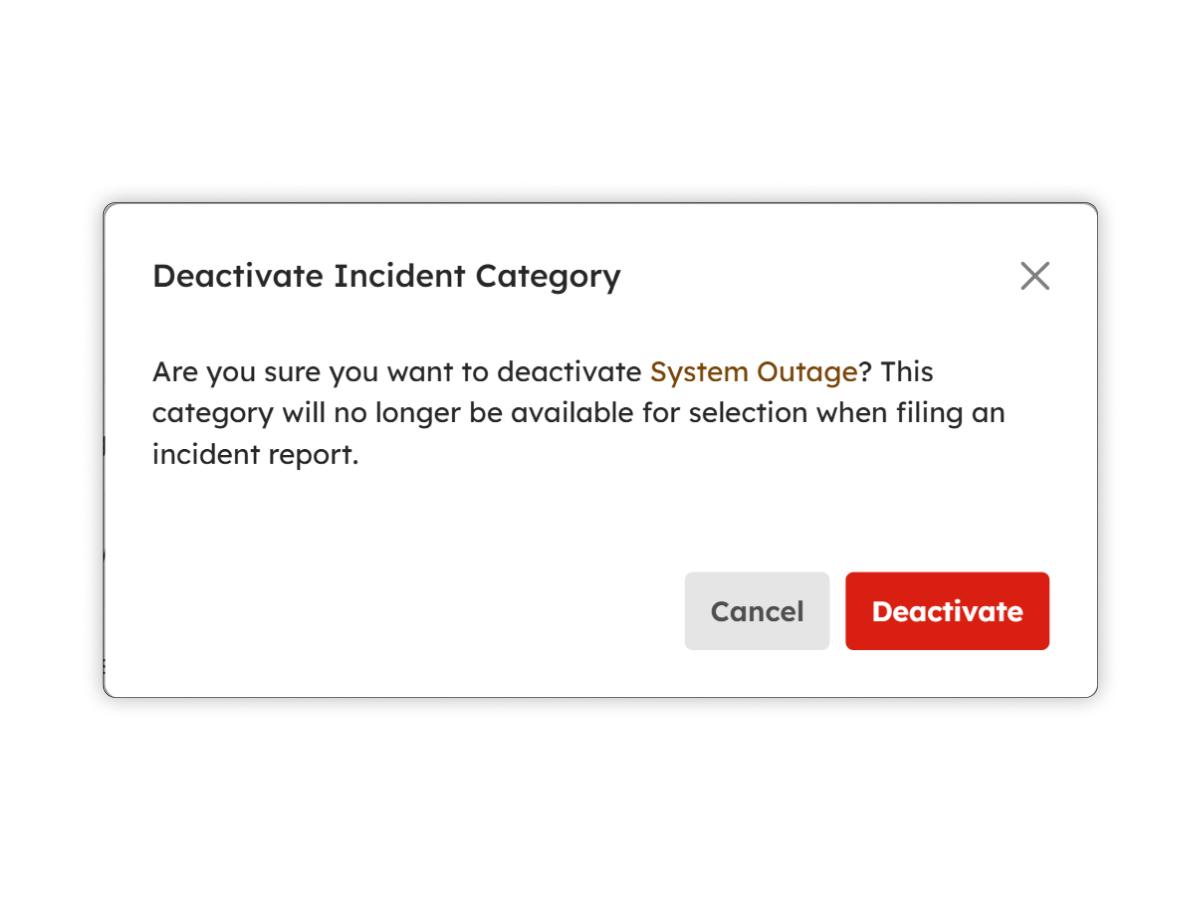
-
Edit Incident Category
Create Incident Categories
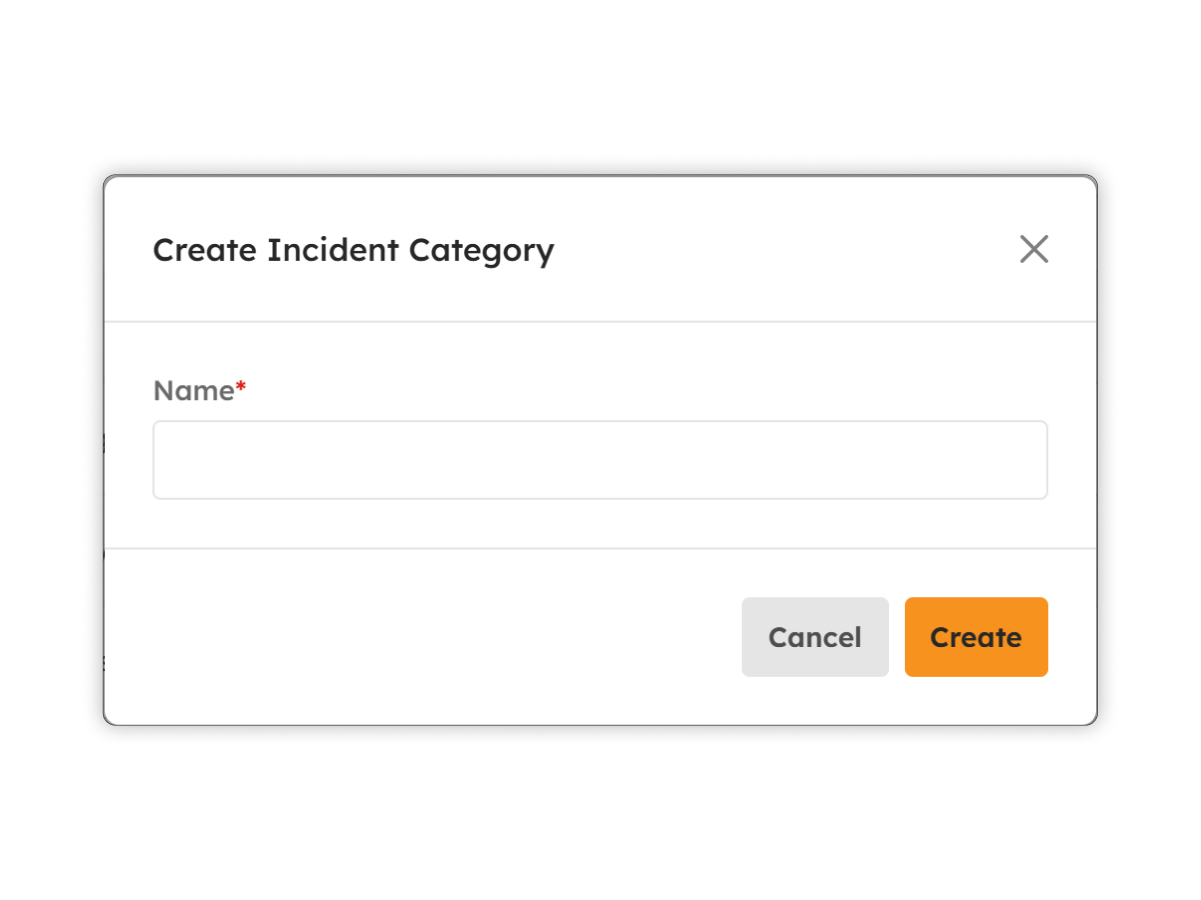
- Select the button located beside the List of Categories heading.
- Enter the required category details.
- Click Create to add the new category to the list.
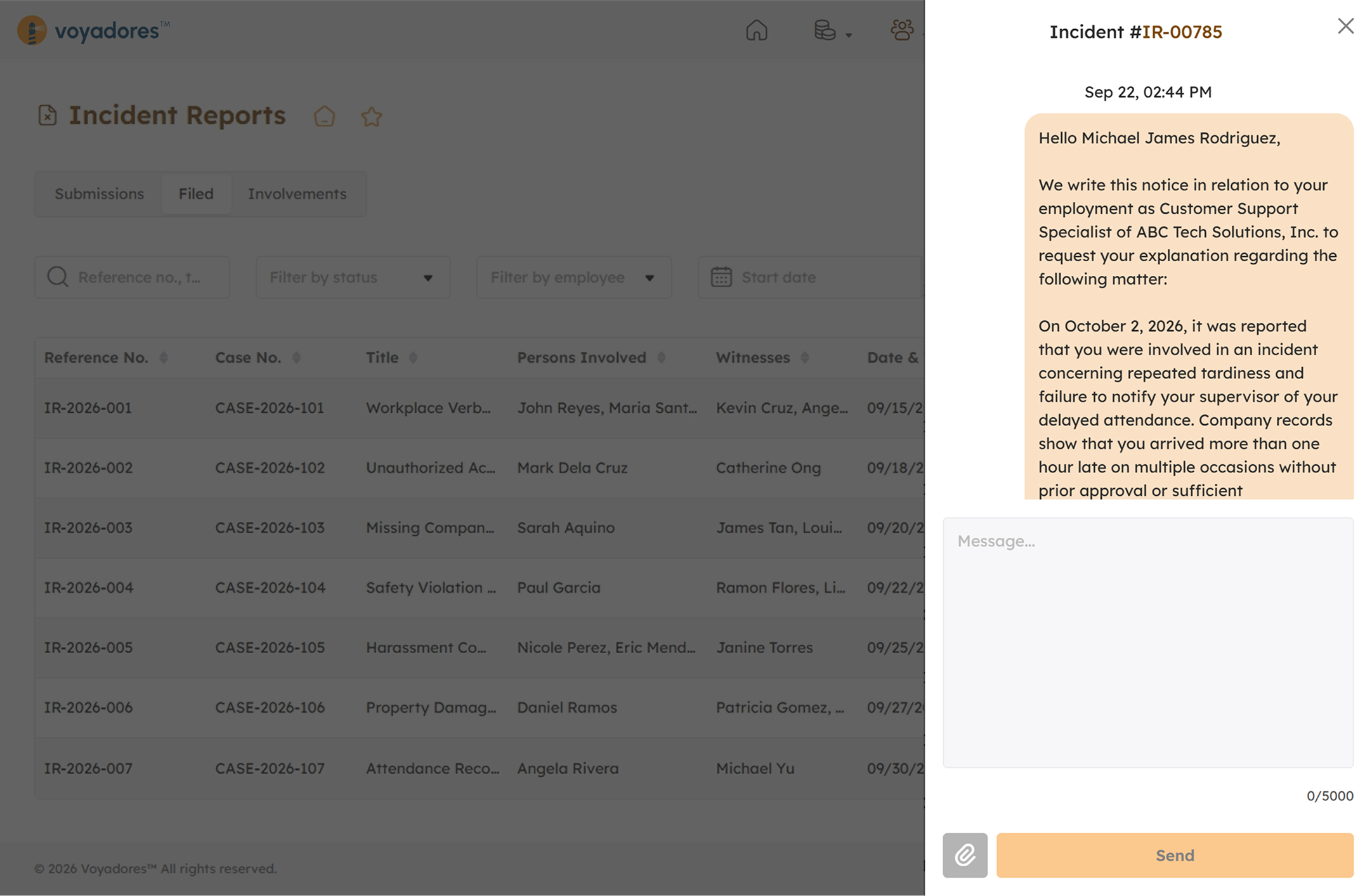
Incident Report Conversation Panel
The Incident Report Conversation Panel displays communication related to a specific incident report. It allows authorized users to review messages, attachments, and responses associated with the incident.
This panel can be accessed by clicking on the IR the user wants to view. The conversation panel opens on the right side of the screen.
Manage and Resolve Incident Reports
HR users can monitor incidents through their respective statuses and update the record as the case progresses. This allows HR to prioritize cases, document investigations, and record appropriate actions based on the facts and applicable company policies.
Where applicable, the incident workflow may include issuing a Notice to Explain (NTE), reviewing the employee's response, documenting investigation findings, and recording disciplinary actions such as written warnings, suspensions, or terminations.
Incident Privacy and Employee Access
Incident information should be handled carefully because it may contain sensitive employee and workplace information. Access to records and available actions should follow the organization's assigned roles, permissions, and privacy policies. Employees may be provided access to incidents in which they are involved, including the ability to review or respond when the configured workflow requires it.
Best Practices for Incident Documentation
- Record incidents promptly while the details are still accurate and available.
- Use clear, objective, and factual descriptions rather than assumptions or unsupported conclusions.
- Identify all relevant persons and witnesses accurately.
- Attach supporting documentation when it is relevant to the case.
- Keep incident status and resolution information updated as the case progresses.
- Follow company policies and applicable procedures when determining corrective or disciplinary actions.
- Limit access to incident information to authorized users.
Reviews
Introduction to Reviews
The Performance Reviews page provides a centralized workspace for managing employee performance evaluations. It helps organizations document employee performance, provide structured feedback, monitor evaluation progress, and maintain a record of completed reviews.
Performance reviews can be used to support regular employee evaluations, identify strengths and areas for improvement, establish development goals, and guide performance-related discussions between employees and their managers or HR representatives.
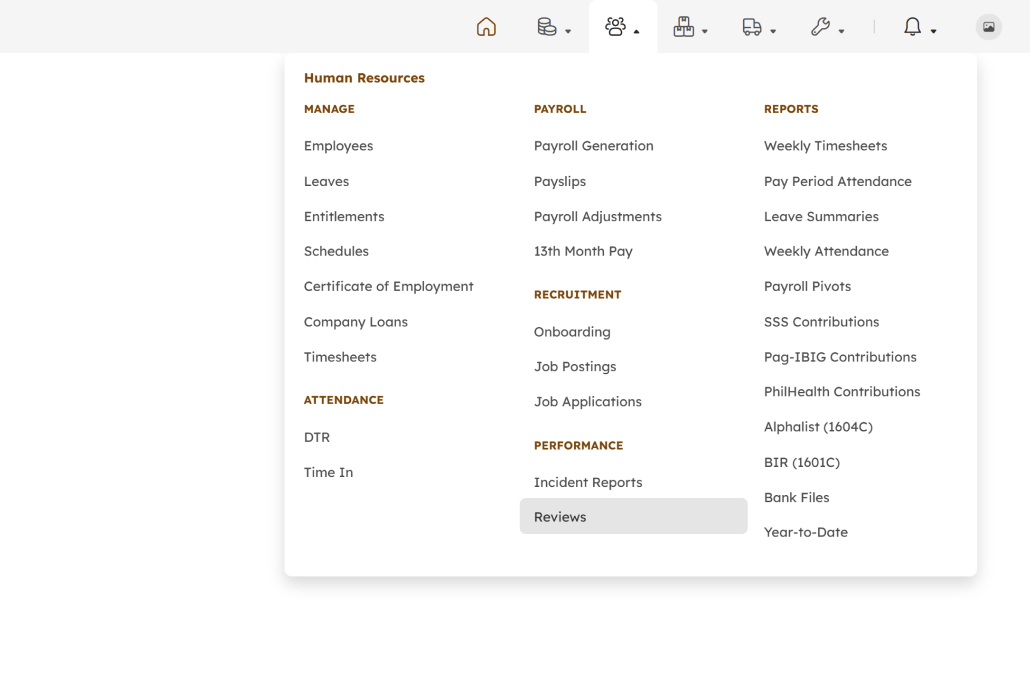
Performance Reviews can be accessed through the Human Resources Module, open the Performance submodule, and select Reviews. The system will redirect you to the Performance Reviews page.
Reviews Features
The image below summarizes the main features available in the Filed tab of the Reviews page.
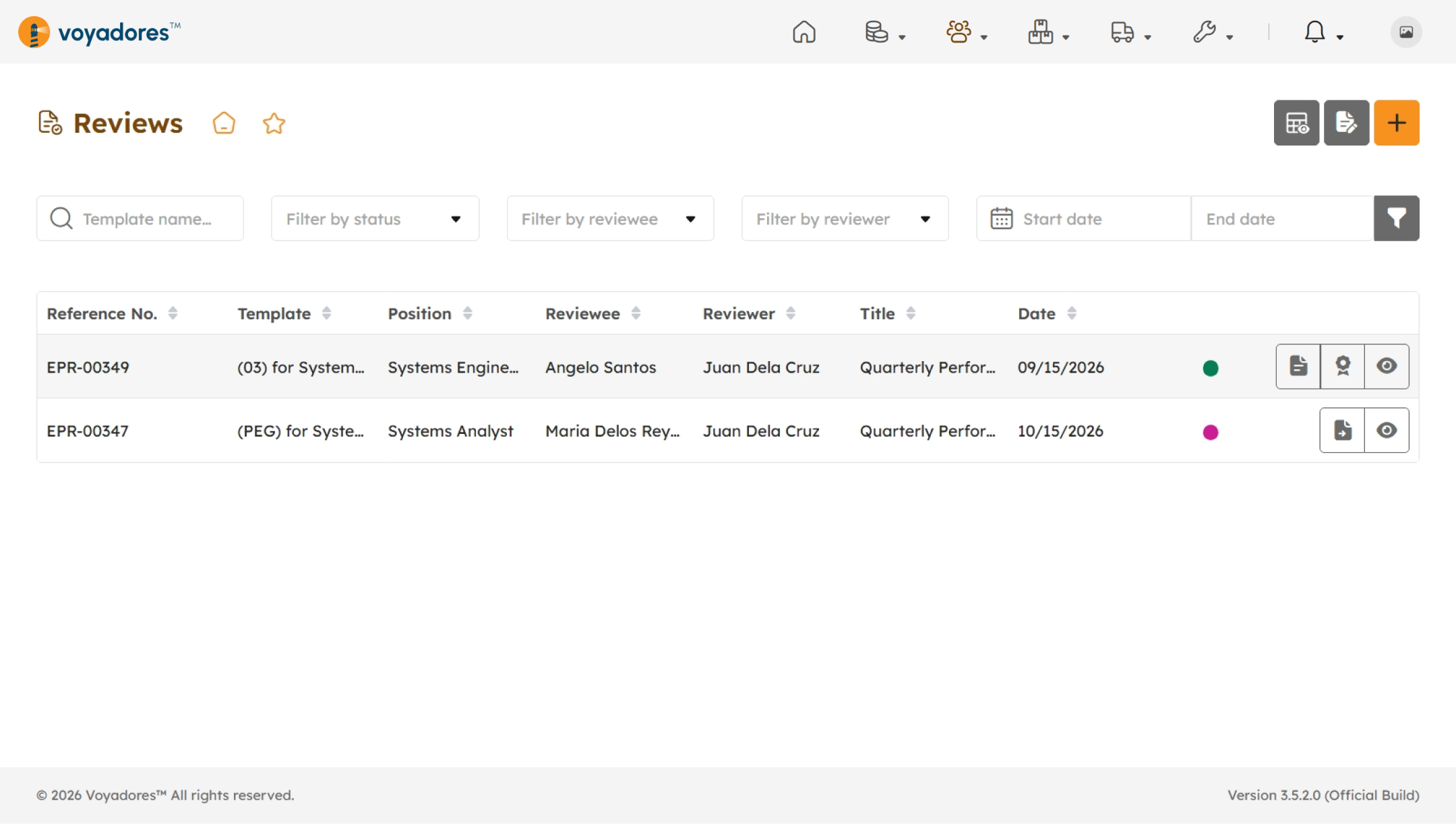
Reviews Page Header Actions
- Set as Default Page
- Add to Quick Links
- Create Review
- Template Editor
- Preview Reviews
Reviews Summary Table
- Reference Number
- Template
- Position
- Reviewee
- Reviewer
- Title
- Date
- Status
-
Actions
- Preview Summary PDF
- Preview Certificate PDF
- Publish Review
- View Employee Review
Performance Review Status
The review status helps users determine the current stage of an evaluation. Organizations may configure statuses according to their performance management process. Common stages may include:
- Pending. The review has been created but has not yet been completed.
- In Progress. The review is currently being prepared or evaluated.
- Submitted. The review has been submitted for the next step in the workflow.
- Completed. The performance evaluation has been finalized.
Note
The actual statuses displayed in the system may vary depending on the organization's configuration.
View Performance Review
Generates and displays a PDF summary containing the employee's review details, ratings, and overall performance results.
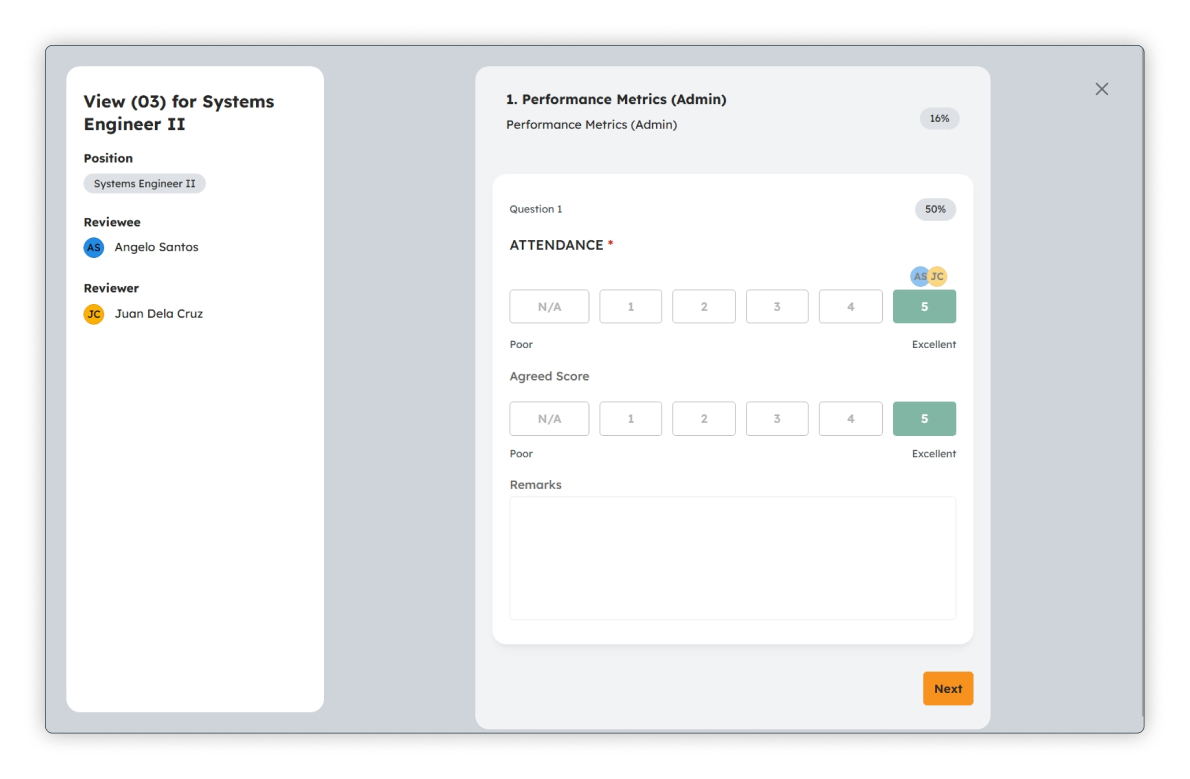
Preview Summary and Certificate PDF
Clicking the generates and displays a PDF summary containing the employee's review details, ratings, and overall performance results.
Meanwhile, the generates and displays a PDF certificate recognizing the employee's performance review completion or achievement.
Note
The content, layout, and information displayed in the Summary PDF and Certificate PDF may vary based on the organization's configured templates, settings, and review requirements.
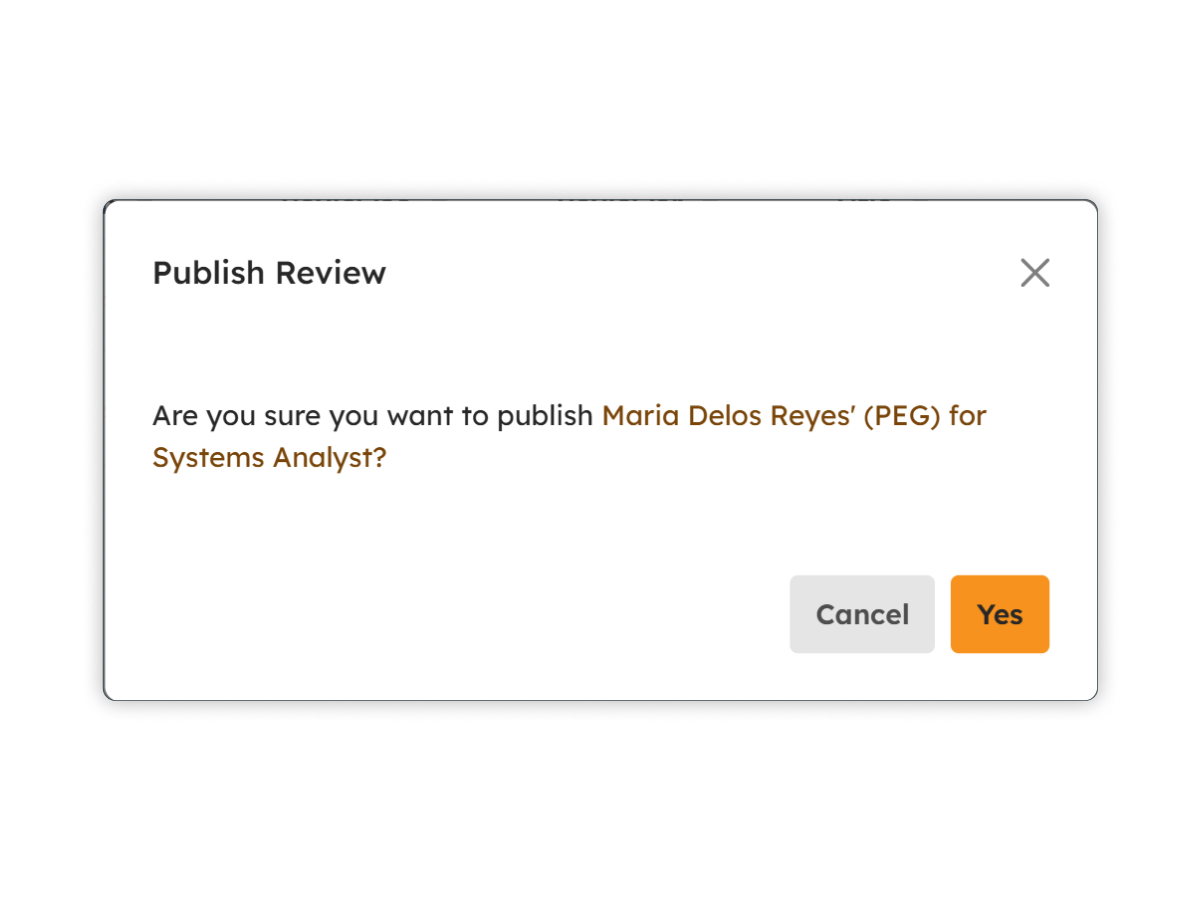
Publish Performance Review
Finalizes the review and makes it available for official use, distribution, and recordkeeping.
Create Performance Review
Authorized users can create a new performance review for an employee. Before saving the review, make sure that the employee, review period, reviewer, evaluation criteria, and other required information are accurate.
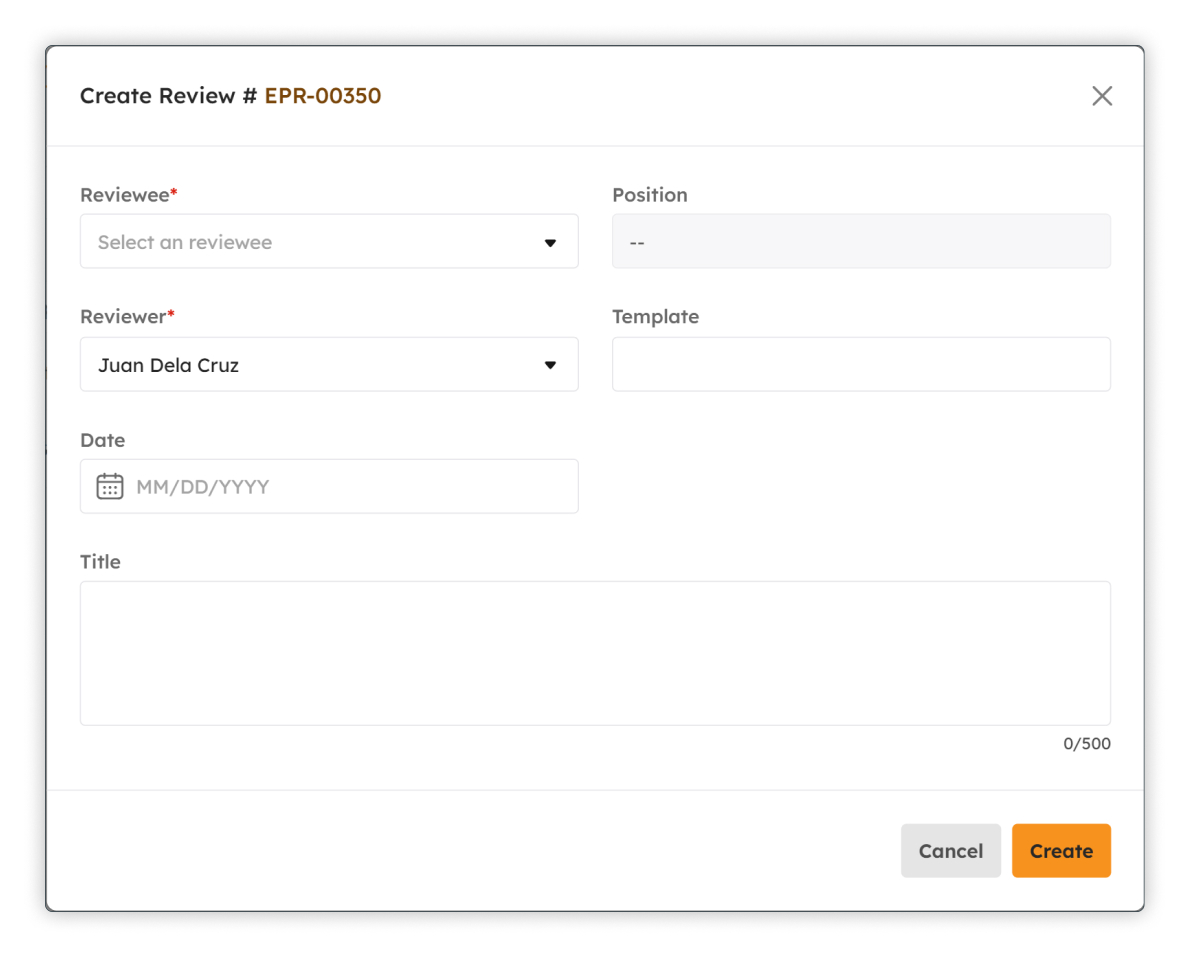
- Click the button.
- Select or enter the employee to be evaluated.
- After selecting a reviewee, the Position field is automatically populated.
- Select the assigned reviewer, if applicable.
- From the Template dropdown field, select the appropriate performance review template.
- From the Date field, select the desired review date from the calendar.
- Enter a descriptive title for the performance review.
- Review the information for accuracy and completeness then click Create. The review record is created and added to the performance review list.
- Select Cancel to close the modal without saving.
Template Editor
The Templates modal allows administrators to view, search, filter, create, activate, deactivate, and manage performance review templates.
Click the button to open the Templates modal.
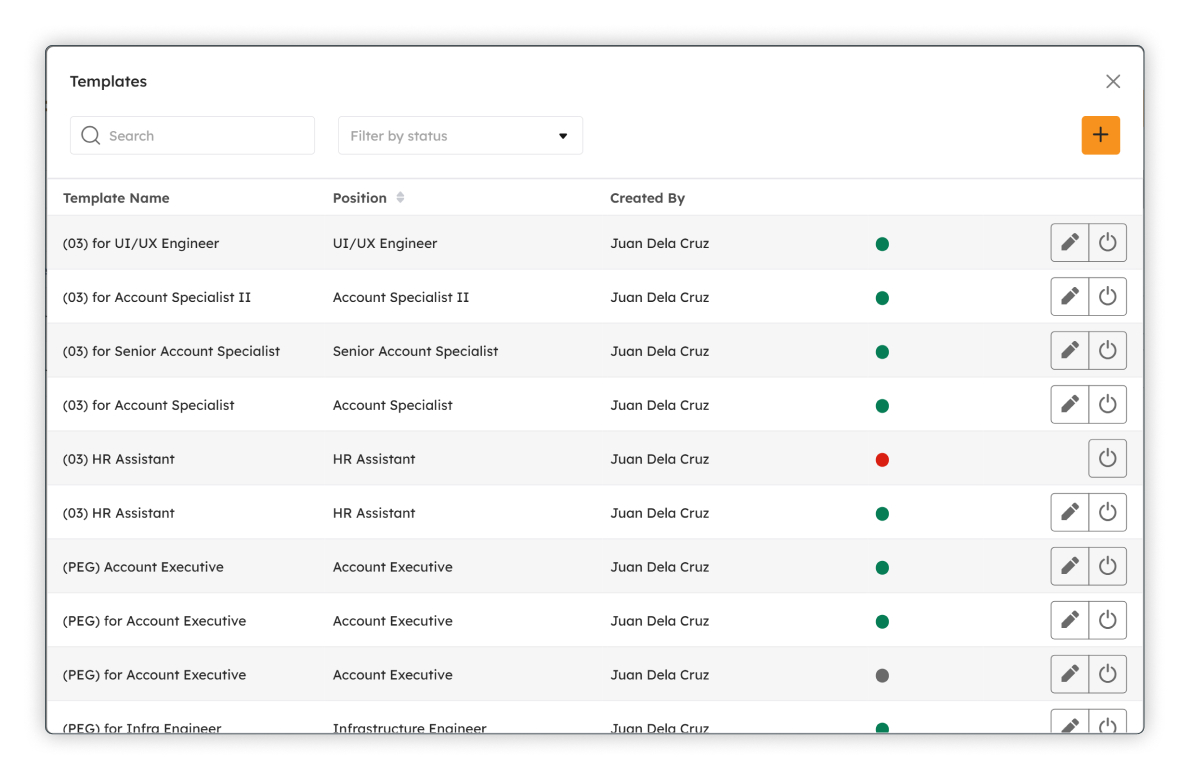
- Template Name
- Position
- Created By
- Status
-
Actions
- Edit Template
- Activate/Deactivate Template
Create a Template
-
Select the button.
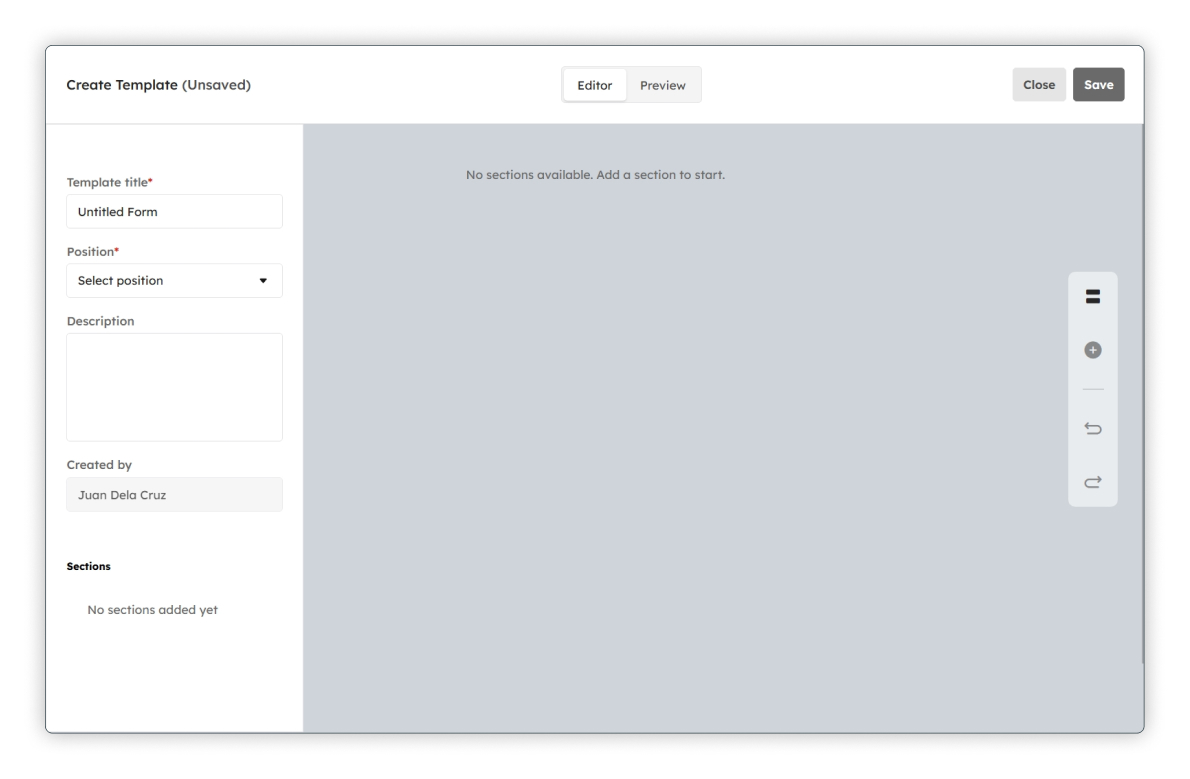
- Complete the required template information.
- Save the template to add it to the list.
Edit a Template
-
Select the button.
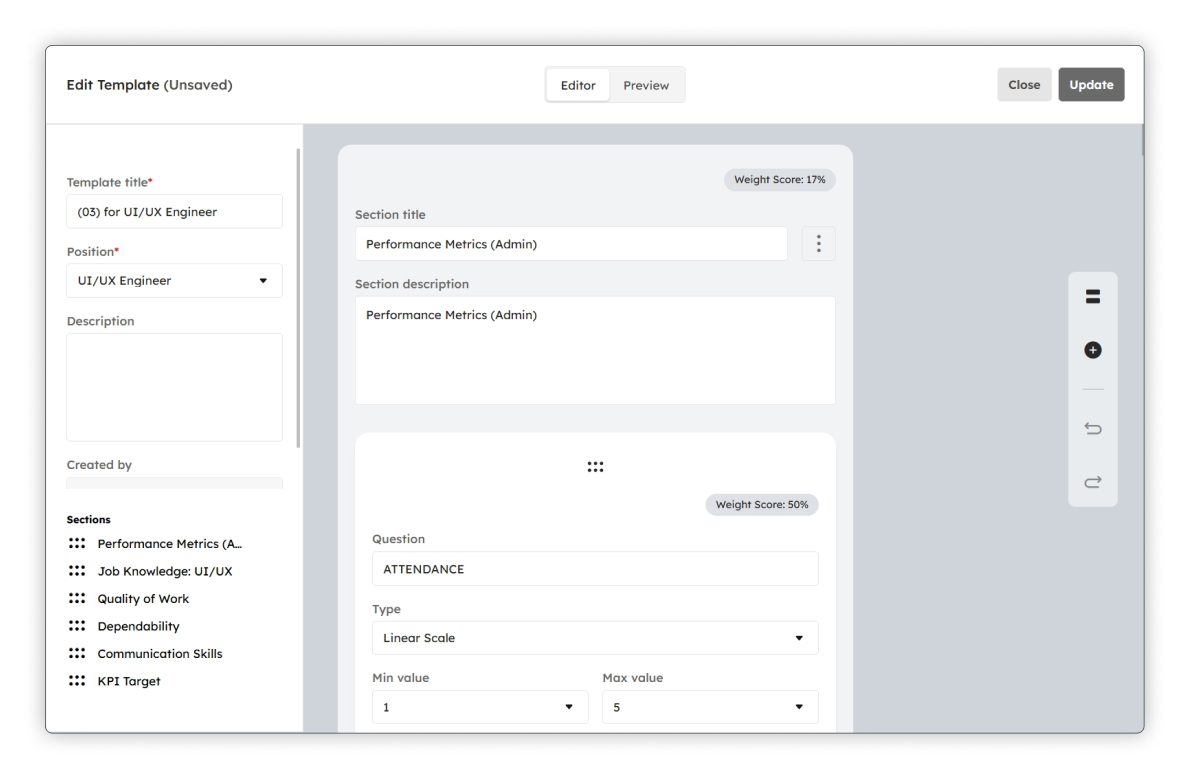
- Update the template details as needed.
- Save the changes.
Activate/Deactivate a Template
-
Select the button beside a template with a Created or Deactivated status.
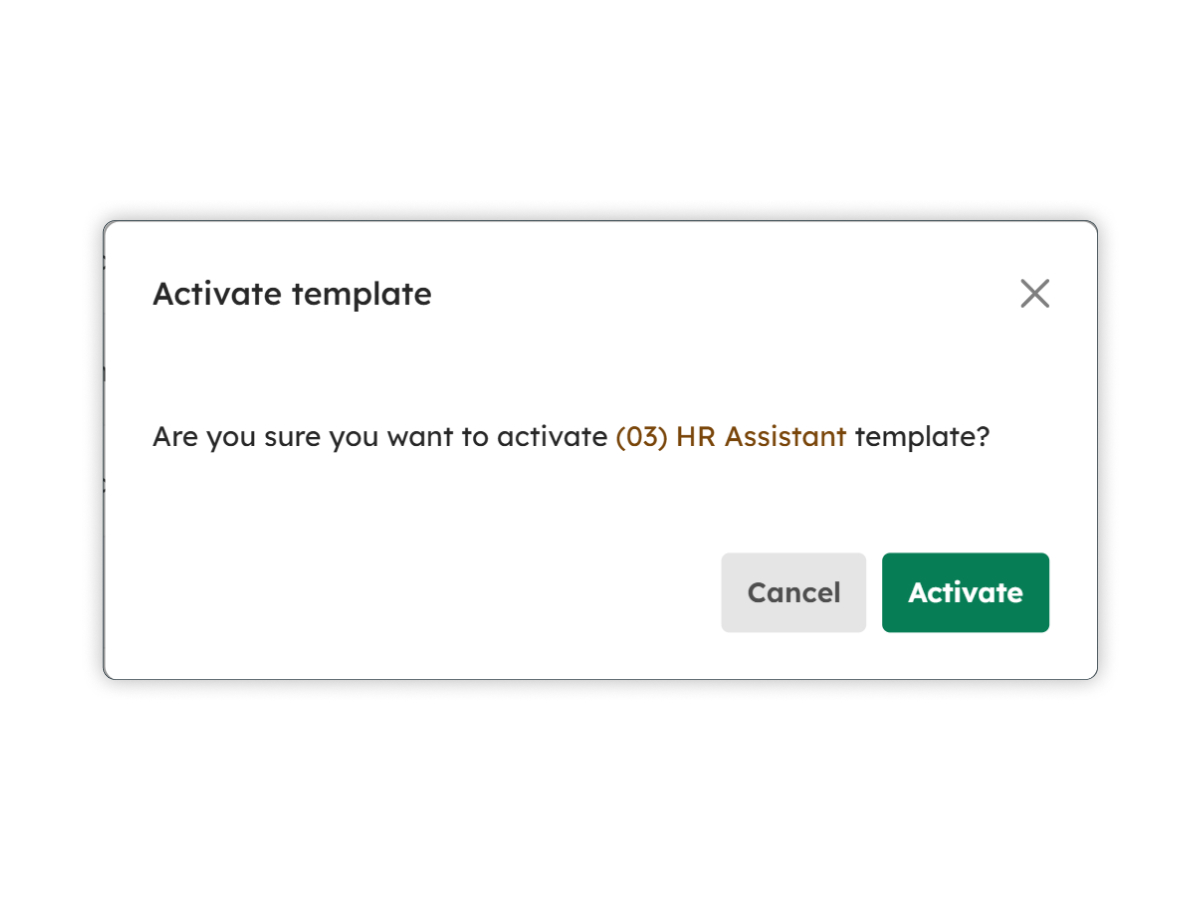 Confirm the activation when prompted and the status changes to Activated.
-
Select the button beside a template with an Active status.
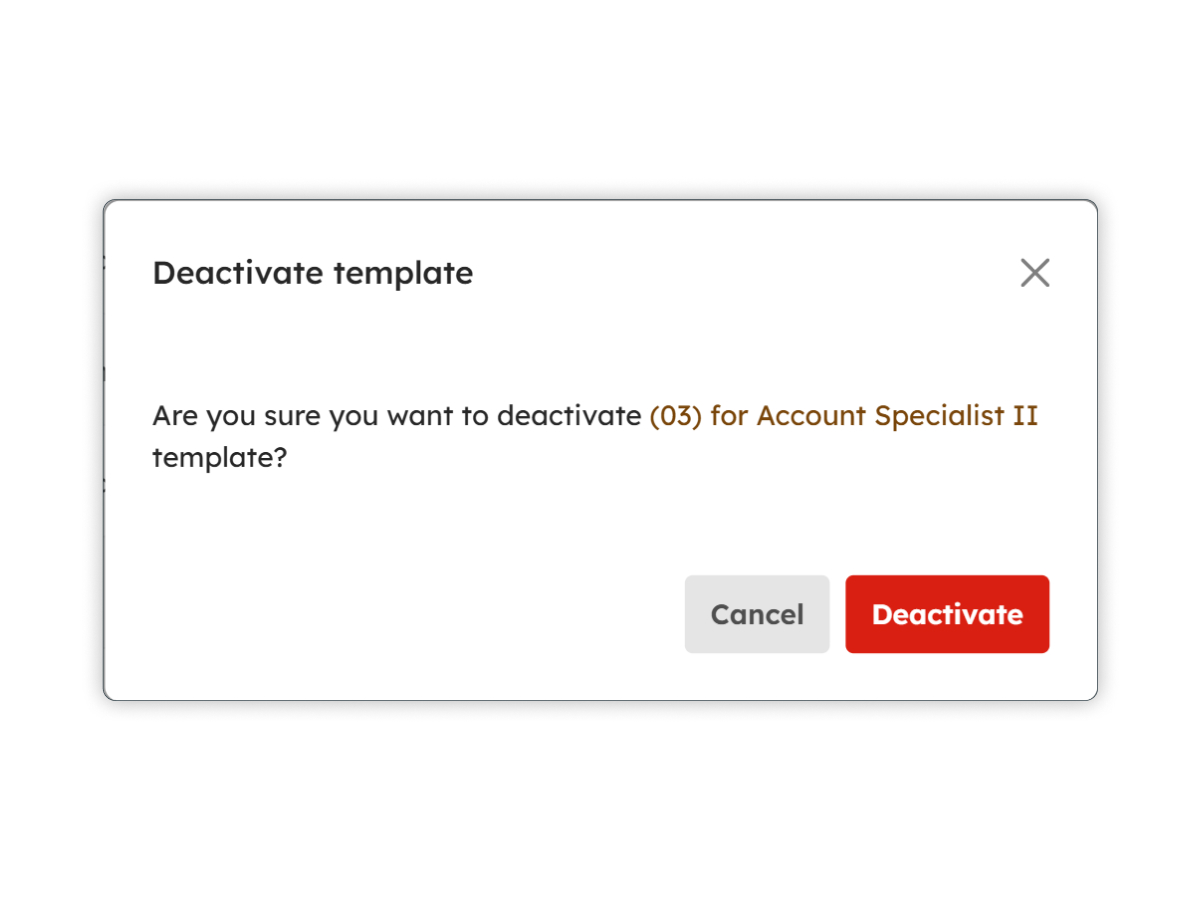 Confirm the deactivation when prompted and the status changes to Deactivated.
Complete a Performance Review
When completing a review, provide objective and constructive feedback based on the employee's actual performance during the review period. Ratings and comments should be consistent with the organization's performance standards and evaluation guidelines.
Once all required sections have been completed, review the information before submitting or finalizing the performance review. Depending on the configured workflow, the review may then become available for the employee or other authorized users to view.
Best Practices for Performance Reviews
- Complete reviews within the organization's designated review schedule.
- Base ratings and comments on observable performance and documented results.
- Provide specific and constructive feedback.
- Recognize employee strengths as well as areas that require improvement.
- Use consistent evaluation standards across employees in comparable roles.
- Keep review information accurate and up to date.
- Handle performance information confidentially and restrict access to authorized users.
- Use review outcomes to support meaningful performance discussions and employee development.